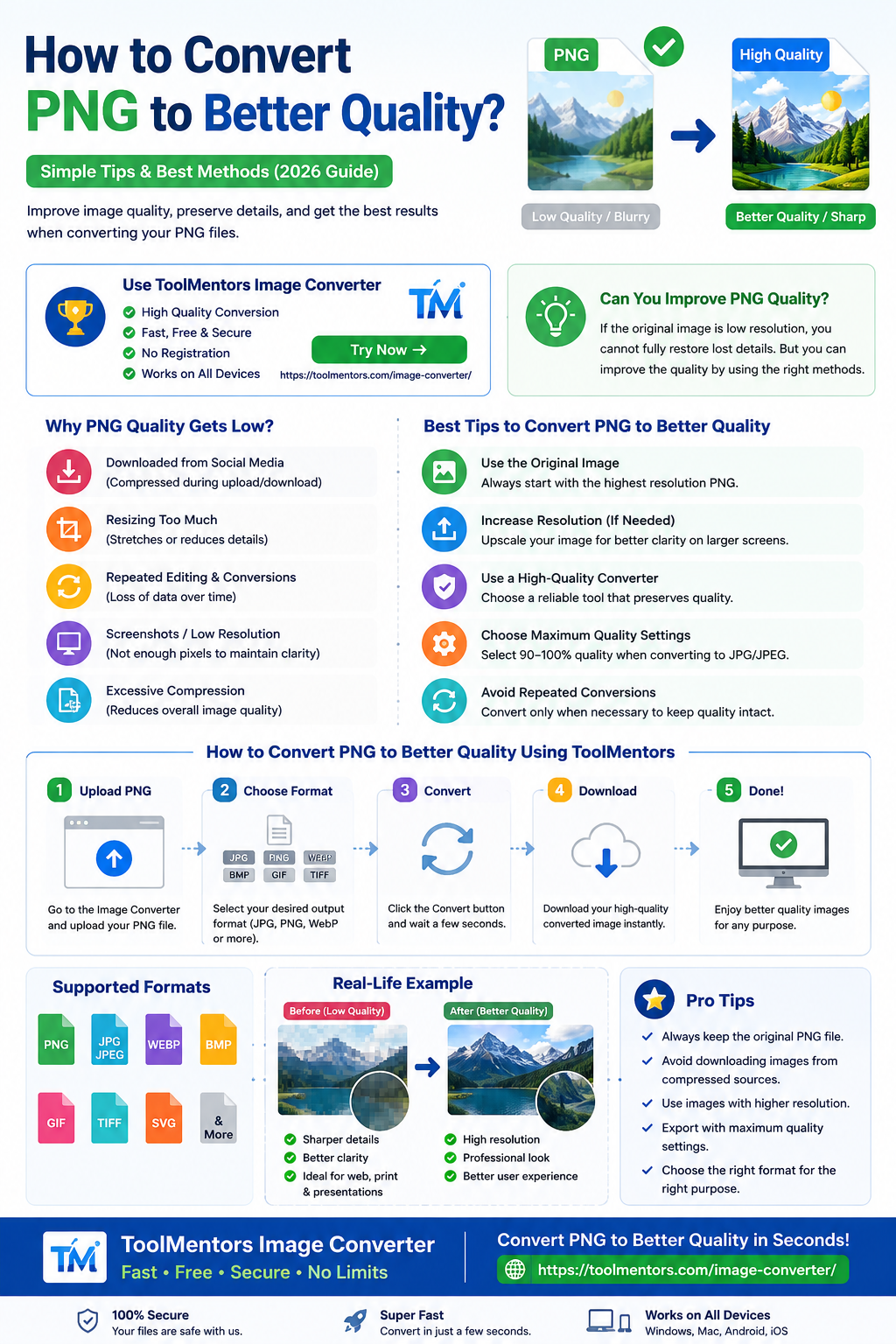
PNG is one of the best image formats for maintaining sharp details, transparent backgrounds, and high-quality graphics. However, many users wonder how to convert a PNG to better quality when their image looks blurry, pixelated, compressed, or low resolution.
The truth is that simply converting a PNG to another PNG won’t magically increase its quality. If the original image has low resolution, you cannot fully restore the lost details. However, you can improve its appearance by using the right conversion settings, increasing resolution, and avoiding unnecessary compression.
If you need to convert PNG images into other formats while maintaining excellent quality, you can use the ToolMentors Image Converter.
👉 https://toolmentors.com/image-converter/
It’s free, fast, secure, and works on Windows, Mac, Android, and iPhone.
Can You Improve the Quality of a PNG?
Yes—but with limitations.
If your PNG already has high resolution, you can preserve that quality during conversion.
If the image is blurry or pixelated, conversion alone cannot recreate missing image details.
Instead, you should:
- Use the original high-resolution image
- Avoid excessive compression
- Export using maximum quality settings
- Increase image resolution with AI upscaling (when needed)
Why Does a PNG Lose Quality?
A PNG file normally uses lossless compression, meaning it doesn’t lose image data when saved.
However, quality problems happen because of:
- Low-resolution original images
- Screenshot compression
- Social media downloads
- Repeated editing
- Resizing images too much
- Poor export settings
Best Ways to Convert PNG to Better Quality
1. Start with the Original Image
Always use the original PNG instead of downloading images from social media or messaging apps.
Example
Original PNG
Resolution:
3000 × 2000 pixels
↓
Downloaded from WhatsApp
Resolution:
800 × 533 pixels
The second image cannot regain the missing details.
2. Use a High-Quality Image Converter
A reliable converter preserves your image quality during conversion.
The ToolMentors Image Converter allows you to convert PNG images quickly while maintaining excellent visual quality.
Benefits
- Free online
- No watermark
- No registration
- Fast conversion
- Supports multiple image formats
- Works on all devices
Try it here:
👉 https://toolmentors.com/image-converter/
3. Increase Image Resolution
If your PNG is small, increasing its resolution before using it on large screens can improve its appearance.
Example:
Original:
800 × 600
Upscaled:
1600 × 1200
While this won’t recreate lost details, it can make the image look better on larger displays.
4. Avoid Repeated Conversions
Every unnecessary conversion increases the risk of quality issues.
Good Practice:
PNG → JPG
Bad Practice:
PNG → JPG → PNG → JPG → PNG
Keep conversions to a minimum.
5. Save Images at Maximum Quality
When exporting to JPG or JPEG, choose high-quality settings.
Recommended:
JPEG Quality:
90–100%
This provides a good balance between image quality and file size.
How to Convert PNG Without Losing Quality
Follow these simple steps:
Step 1
Visit
https://toolmentors.com/image-converter/
Step 2
Upload your PNG image.
Step 3
Choose your desired output format.
Examples:
- JPG
- JPEG
- PNG
- WebP
- BMP
- GIF
Step 4
Click Convert.
Step 5
Download your converted image instantly.
Why Use ToolMentors Image Converter?
Unlike many online converters, ToolMentors focuses on maintaining image quality while making conversion quick and simple.
Features
✅ High-quality image conversion
✅ Fast processing
✅ Secure uploads
✅ Multiple image formats
✅ Mobile-friendly
✅ No software installation
✅ Completely free
Whether you’re converting PNG to JPG, WebP, BMP, or another format, ToolMentors makes the process easy.
👉 Convert your image now: https://toolmentors.com/image-converter/
Real-Life Example
Suppose you’re designing a logo for your website.
Original Logo
- PNG
- 2500 × 2500 pixels
- Transparent background
You need a JPG version for an email attachment.
Using the ToolMentors Image Converter:
✔ High-quality JPG output
✔ Smaller file size
✔ Fast download
✔ Easy sharing
The image remains sharp while becoming more suitable for everyday use.
Common Mistakes to Avoid
❌ Downloading low-quality images
❌ Repeated image conversions
❌ Compressing images too much
❌ Enlarging very small images excessively
❌ Using unknown image converters
Best Image Format for High Quality
| Format | Image Quality | Best For |
|---|---|---|
| PNG | Excellent | Logos, graphics, screenshots |
| JPG | Very Good | Photos, websites |
| WebP | Excellent | Modern websites |
| TIFF | Professional | Printing |
| SVG | Infinite Quality | Icons, vector graphics |
PNG vs JPG Quality
PNG stores images using lossless compression, making it ideal for graphics, logos, and screenshots.
JPG uses lossy compression, which reduces file size but may slightly decrease quality.
If your goal is maximum visual quality, PNG remains the better choice.
If your goal is smaller file size and faster website performance, JPG is often the better option.
Pro Tips for Better PNG Quality
- Always keep the original PNG file.
- Avoid downloading images from compressed sources.
- Use high-resolution images whenever possible.
- Convert only when necessary.
- Keep transparency if required.
- Optimize images before uploading to your website.
Frequently Asked Questions
Can I improve PNG image quality?
Yes, but only if the original image contains enough detail. You can preserve quality during conversion and improve appearance by using higher resolutions and proper export settings.
Does converting PNG increase image quality?
No. Converting alone cannot add missing details. It can only preserve the existing quality or change the file format.
Is PNG better quality than JPG?
Generally, yes. PNG uses lossless compression, making it ideal for graphics, logos, and screenshots, while JPG is better for photographs and smaller file sizes.
What’s the best way to convert PNG?
Use a trusted online converter like the ToolMentors Image Converter to preserve image quality while converting between PNG, JPG, WebP, BMP, GIF, and more.
Final Thoughts
If you’re wondering how to convert PNG to better quality, the most important thing to remember is that no converter can recreate image details that were never there. However, by starting with a high-resolution PNG, avoiding unnecessary compression, and using a reliable conversion tool, you can preserve excellent image quality.
The ToolMentors Image Converter is a simple, free, and secure solution for converting PNG images while maintaining the best possible quality. Whether you’re preparing images for websites, social media, presentations, or printing, it’s a fast and reliable choice.
👉 Convert your PNG images today: https://toolmentors.com/image-converter/