
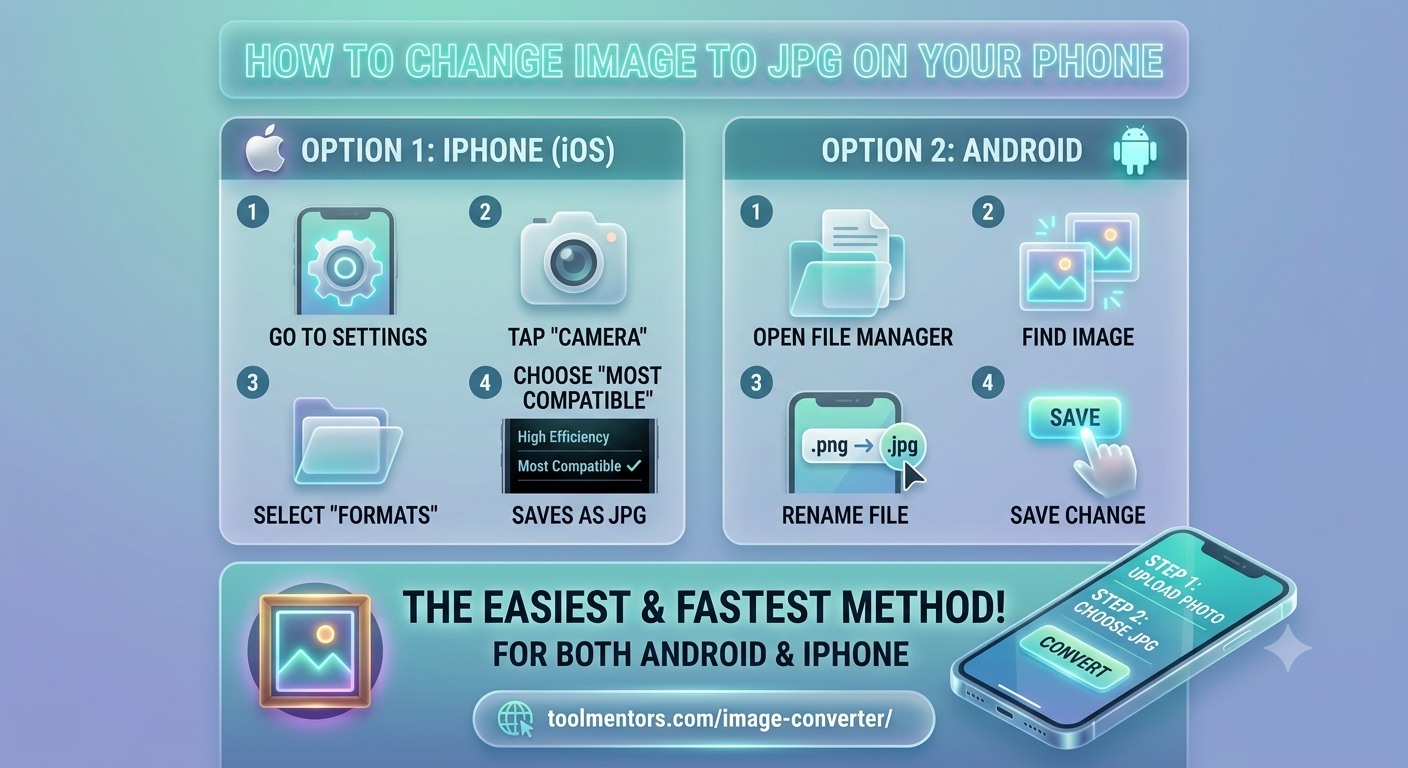
By default, newer iPhones save photos in Apple’s HEIC format to save storage. If you need them in JPG, you can use these simple methods:
Method A: Change Your Camera Settings (For all future photos)
If you want your iPhone to always take photos in JPG format by default:
-
Open the Settings app on your iPhone.
-
Scroll down and tap on Camera.
-
Tap on Formats.
-
Change the selection from High Efficiency to Most Compatible. Now, your camera will shoot and save photos in JPG/JPEG.
Method B: Use the Files App (Quick conversion without any app)
If you want to convert an existing HEIC or PNG photo to JPG:
-
Open the Photos app and select the image you want to convert.
-
Tap the Share button (the square with an arrow pointing up) and select Copy Photo.
-
Open the built-in Files app on your iPhone.
-
Go to any folder (like “On My iPhone”), long-press on an empty space, and tap Paste.
-
The Files app will automatically convert and save the pasted image as a JPEG/JPG file.
2. How to Convert an Image to JPG on Android
Most Android phones shoot in JPG by default, but if you have a PNG, WEBP, or HEIC file that you need to convert, here are your options:
Method A: Use a File Manager (Renaming the extension)
For some images, simply changing the file extension works perfectly:
-
Open your phone’s default File Manager or Files app.
-
Locate the image you want to convert.
-
Long-press the file, tap the three dots (Menu), and select Rename.
-
Change the extension at the end of the file name (e.g., change
.pngor.webpto.jpg). -
Save the changes. (Note: While quick, this method might occasionally cause file readability issues on some older devices).
Method B: Edit and Save in Google Photos
-
Open the image in the Google Photos app.
-
Tap Edit at the bottom.
-
Make a minor adjustment (like cropping slightly or adjusting brightness) and tap Save copy.
-
Google Photos will often save this edited copy as a standard JPG file.
The Easiest & Fastest Method (Works on both Android & iPhone)
If you don’t want to dig through settings, rename files, or install heavy apps, the absolute easiest way to convert any image format (PNG, WEBP, HEIC, etc.) to high-quality JPG is by using a free online converter directly from your mobile browser.
You can instantly convert your images by using this free tool:
👉 Tool Mentors – Free Image Converter
How to use it:
-
Open the link on your phone.
-
Upload your photo.
-
Choose JPG as your output format.
-
Click Convert and download your newly converted JPG image in seconds!