
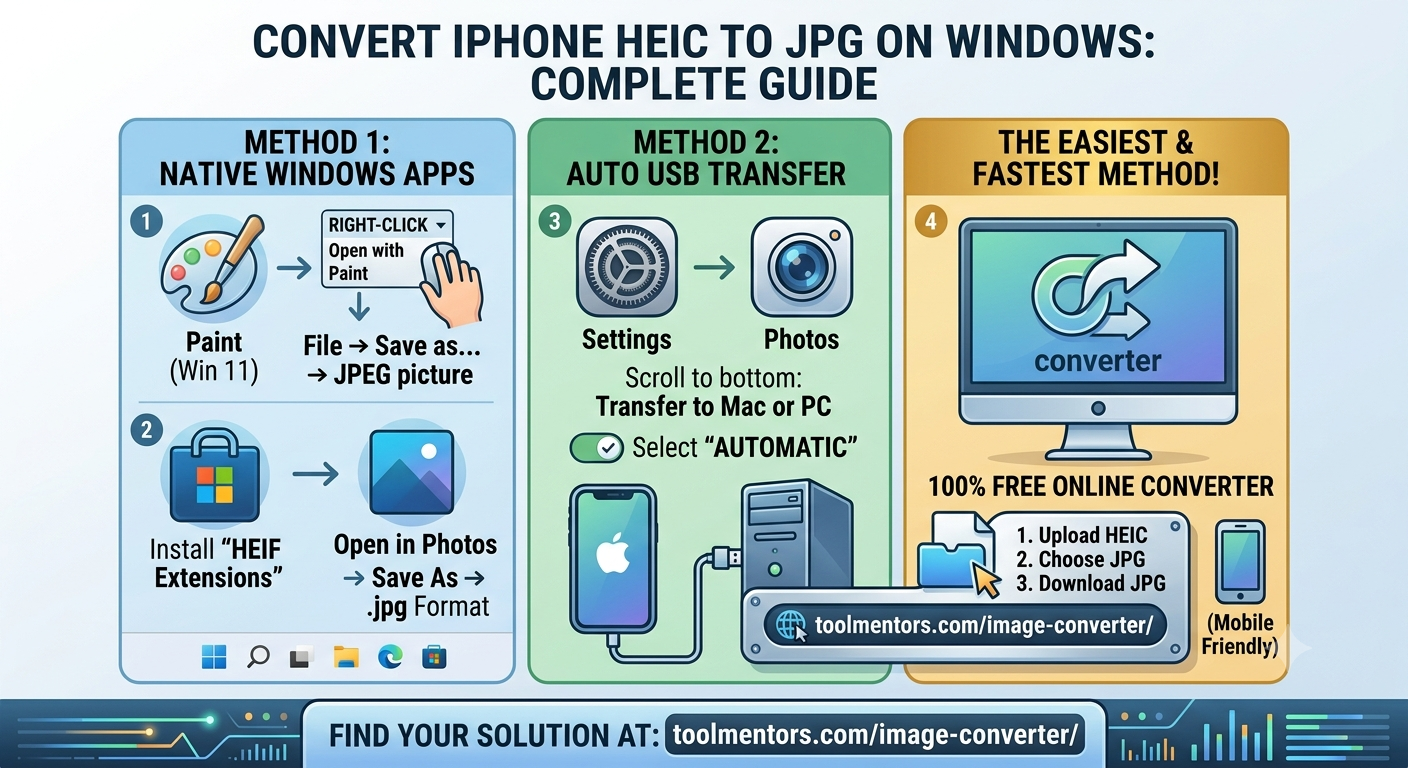
Converting iPhone HEIC photos to JPEG/JPG on a Windows PC can be frustrating because Windows doesn’t natively support Apple’s HEIC format out of the box.
Below is a complete, beginner-friendly guide covering the best native, automated, and instant ways to convert your photos on Windows.
Method 1: The Windows 11 “Paint” Trick (Quickest Native Way)
If you are running Windows 11, the pre-installed Microsoft Paint app can open and convert HEIC files to JPG directly without requiring any extra downloads.
-
Right-click on the HEIC photo.
-
Hover over Open with and select Paint.
-
Once the image opens, click on File in the top-left corner.
-
Hover over Save as and select JPEG picture.
-
Choose where you want to save it, and click Save.
Method 2: Use the Default Windows Photos App
To view and convert HEIC photos directly inside the default Windows Photos app, you just need a free official extension from Microsoft.
-
Open the Microsoft Store on your PC, search for HEIF Image Extensions, and install it (it’s completely free).
-
Double-click your HEIC image to open it in the Photos app.
-
Click on the three dots (…) at the top of the window.
-
Select Save As.
-
Under the Save as type dropdown menu, change the format from
.heicto.jpgor.jpeg, then hit Save.
Method 3: Convert Automatically During USB Transfer
If you are moving photos from your iPhone to Windows via a USB cable, you can configure your iPhone to automatically convert the files to JPG during the transfer process.
-
Open Settings on your iPhone.
-
Scroll down and tap on Photos.
-
Scroll to the very bottom to find the Transfer to Mac or PC section.
-
Select Automatic (instead of Keep Originals).
Now, whenever you copy photos via USB, your iPhone will automatically convert them to standard JPEGs on your Windows PC.
The Easiest & Fastest Way: Convert Online (No Settings to Change)
If you have multiple HEIC images, or if you don’t want to deal with Windows Extensions, command lines, or copying files back and forth, you can convert them instantly in your web browser.
You can use this simple, free online utility designed to handle this exact problem in seconds:
👉 Tool Mentors – Free Image Converter
How it works:
-
Drag and drop your
.heicfiles directly into the converter. -
Choose JPG as your output format.
-
Click Convert and download your clean, highly compatible JPEG images right to your Windows PC!