
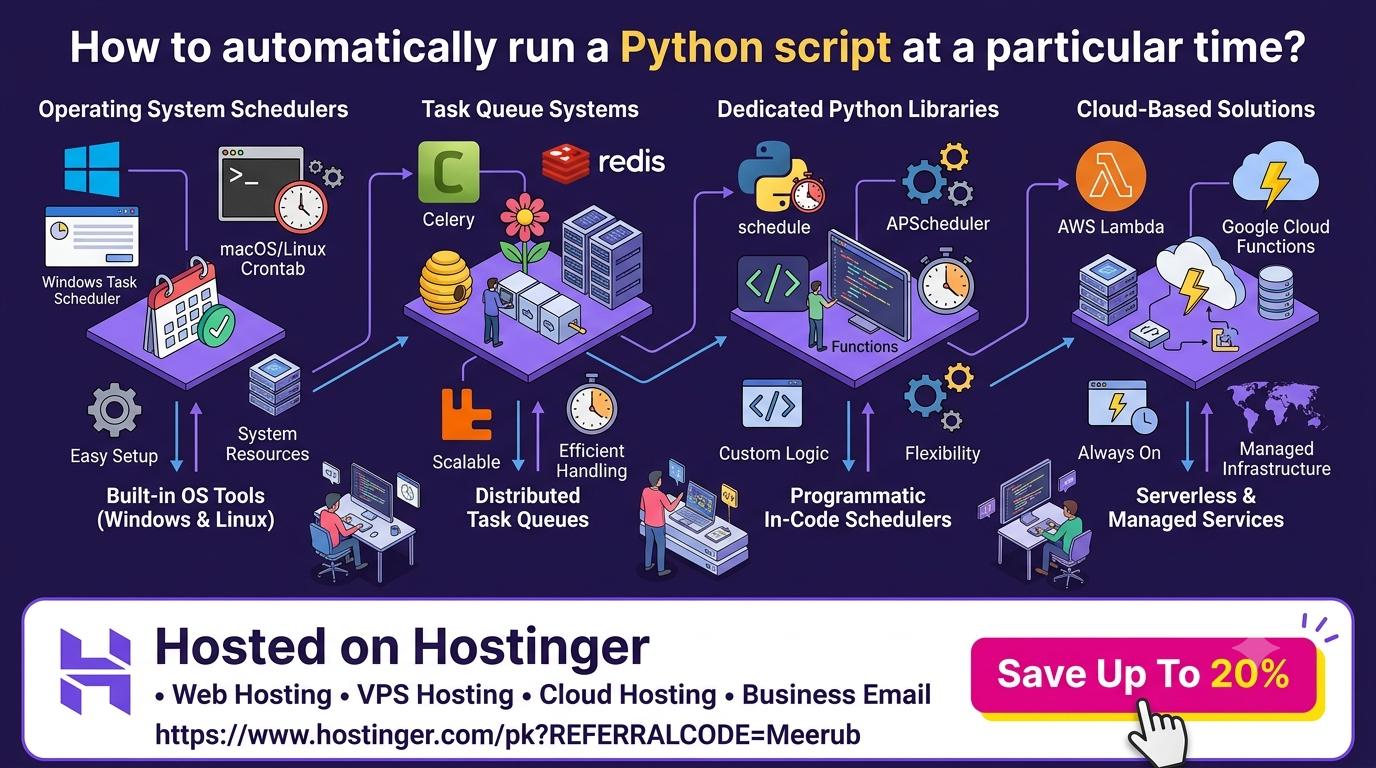
To automatically run a Python script at a specific time, you can use built-in operating system schedulers like Cron jobs on Linux/macOS or Windows Task Scheduler on Windows. Alternatively, for continuous 24/7 cloud execution without keeping your personal computer turned on, deploying your script to a VPS server using tools like systemd or cron provides the most reliable solution.
The Power of Python Automation: Why Schedulers Matter
Automating routine tasks is one of the most valuable skills a developer, student, or freelancer can master. Whether you are scraping daily market prices, sending client email updates, backing up databases, or triggering machine learning training pipelines, executing Python scripts automatically eliminates repetitive manual work.
Benefits Across Different Roles
-
For Freelancers: Deliver automated solutions to clients—such as daily data reports or automatic social media posters—that generate recurring income while running seamlessly in the background.
-
For Developers: Automate database cleanups, API health checks, and build deployment notifications without adding overhead to daily engineering workflows.
-
For Students: Automatically collect research data, pull academic updates, or send study reminders without having to log in manually every morning.
However, choosing the right scheduling method depends heavily on your operating system and whether your script needs to run on a local machine or 24/7 in the cloud.
Method 1: Operating System Task Schedulers (Local Execution)
If your computer stays powered on during the scheduled run time, native operating system tools offer a quick and dependency-free setup.
1. Windows Task Scheduler
Windows includes a built-in graphical scheduler capable of triggering Python scripts based on specific time triggers.
Step-by-Step Configuration:
-
Open the Start menu, search for Task Scheduler, and launch it.
-
Click Create Basic Task in the right-hand panel and name your task (e.g.,
Daily_Python_Report). -
Select your desired frequency (Daily, Weekly, or Monthly) and set the start time.
-
Choose Start a program as the action.
-
Under Program/script, paste the absolute path to your Python executable (e.g.,
C:\Python311\python.exeor your virtual environment path). -
In the Add arguments (optional) field, enter the full path to your script file (e.g.,
"C:\Scripts\main.py"). -
Click Finish to activate the schedule.
2. Linux & macOS Cron Jobs
On Linux distributions and macOS, cron is the industry standard daemon for time-based job scheduling.
Step-by-Step Configuration:
-
Open your terminal and open the cron configuration file:
Bashcrontab -e -
Add a new cron entry following the standard syntax (
minute hour day-of-month month day-of-week command):Bash0 9 * * * /usr/bin/python3 /home/user/scripts/daily_task.py >> /home/user/scripts/cron.log 2>&1This example runs
daily_task.pyevery morning at 9:00 AM and appends output and errors to a log file. -
Save and close the editor. You can list active jobs anytime using
crontab -l.
Method 2: Pure Python Schedulers (Code-Level Control)
If you prefer keeping scheduling logic directly inside your code rather than relying on OS settings, Python libraries like schedule or APScheduler allow programmatically defined execution intervals.
import schedule
import time

def job():
    print("Running scheduled Python task...")

# Schedule to run every day at 08:30 AM
schedule.every().day.at("08:30").do(job)

# Keep the process running
while True:
    schedule.run_pending()
    time.sleep(60)
Note: For Python-based schedulers to execute, the script process must remain running continuously in the background.
Method 3: Running Scripts 24/7 in the Cloud (The Professional Approach)
Running scripts on a local laptop or desktop has a fundamental limitation: if your computer turns off, goes to sleep, or loses internet connectivity, your scheduled script fails.
To achieve true 99.9% uptime for business automation, API scraping, or client workflows, developers host their scheduled scripts on a cloud server or Virtual Private Server (VPS).
Why Deploy to a Hostinger Cloud VPS?
Deploying your Python automation onto Hostinger VPS Hosting provides complete control over your operating system, root access, dedicated IP resources, and round-the-clock reliability.
When hosting scripts on Hostinger, you get:
-
High Uptime & Performance: Fast NVMe storage and high-speed network connectivity keep your background bots running without interruption.
-
Easy SSH Access: Quick command-line access lets you configure
cronjobs or systemd services within minutes. -
Affordability: Enterprise-grade cloud server features priced accessibly for freelancers, students, and indie developers.
Quick Hostinger VPS Setup Guide:
-
SSH into your Hostinger VPS:
Bashssh root@your_vps_ip -
Install Python and clone your project repository:
Bashsudo apt update && sudo apt install python3 python3-pip -y git clone https://github.com/your-username/your-python-repo.git -
Set up a systemd service or
crontabentry so your script executes reliably in the background 24/7/365.
Key Best Practices for Automated Python Scripts
To ensure your scheduled scripts run without crashing, follow these critical development practices:
-
Use Absolute File Paths: Schedulers do not execute from your current working directory. Always specify full system paths for input files, logs, and relative imports.
-
Implement Log Management: Redirect stdout and stderr into log files (
>> output.log 2>&1) so you can debug missing dependencies or network timeouts. -
Virtual Environments: Point your scheduler directly to the Python interpreter inside your virtual environment (e.g.,
/home/user/venv/bin/python3) to avoid package mismatch issues. -
Graceful Exception Handling: Wrap key logic inside
try-exceptblocks to prevent unexpected API rate limits or network drops from permanently halting your background worker.
Exclusive Hosting Offer: Automate Your Code 24/7 with Hostinger
Stop relying on local machines that turn off when you close your laptop screen. Take your automation projects to a professional level with ultra-reliable hosting.
unlock an EXCLUSIVE 20% EXTRA DISCOUNT on Hostinger’s hosting and VPS packages to deploy your Python scripts, web applications, and web development projects with maximum efficiency and high performance.
Claim Your Exclusive 20% Hostinger Discount Now
Use referral code Meerub at checkout to instantly claim your 20% discount.