HTML5 is one of the easiest technologies to start learning when building websites. However, beginners often make small coding mistakes that can cause broken layouts, accessibility problems, browser compatibility issues, and difficulties maintaining websites.
Even if your webpage looks correct in a browser, your HTML code might contain structural errors. Incorrect nesting, missing attributes, duplicate IDs, and poorly structured headings are common examples.
Understanding these problems early can help you write cleaner code, build accessible websites, and improve your web development skills.
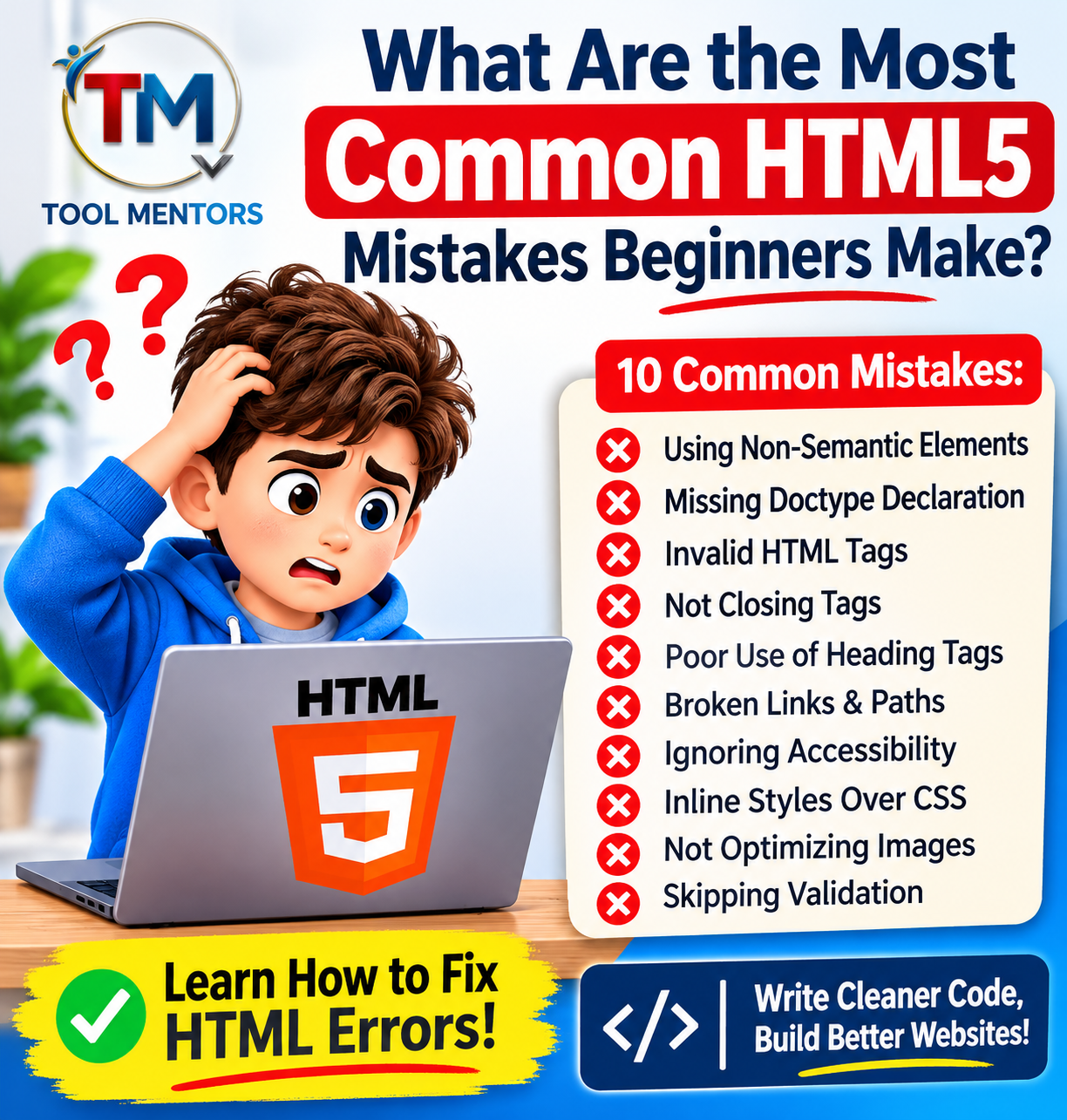
In this guide, we will explore the 10 most common HTML5 mistakes beginners make, explain why they matter, and show you how to fix them with practical examples.
1. Forgetting the HTML5 DOCTYPE Declaration
One of the most common HTML mistakes beginners make is forgetting to include the DOCTYPE declaration at the beginning of an HTML document.
The DOCTYPE tells the browser which HTML standard the document follows. Without it, browsers may use quirks mode, which can produce unexpected rendering behavior.
Incorrect HTML:
<html>
<head>
    <title>My First Website</title>
</head>
<body>
    <h1>Welcome to My Website</h1>
</body>
</html>
Correct HTML5:
<!DOCTYPE html>
<html lang="en">
<head>
    <title>My First Website</title>
</head>
<body>
    <h1>Welcome to My Website</h1>
</body>
</html>
How to avoid this mistake:
Always start your HTML5 document with <!DOCTYPE html>. It is a simple declaration that helps browsers render your page using modern standards.
2. Using Incorrect HTML Tag Nesting
Incorrectly nesting HTML elements is another common problem for beginners.
HTML elements must follow their content rules. For example, a paragraph cannot contain a <div> element, and interactive elements such as links should not be nested inside other links.
Incorrect HTML:
<p>
    Welcome to my website.
    <div>Learn HTML5 today!</div>
</p>
Correct HTML:
<p>Welcome to my website.</p>

<div>
    Learn HTML5 today!
</div>
How to avoid this mistake:
- Understand which elements can contain other elements.
- Close nested elements in the correct order.
- Avoid placing block-level content inside elements that do not allow it.
- Use an HTML validator to identify structural problems.
3. Using Too Many DIV Elements Instead of Semantic HTML5
Many beginners use <div> elements for almost everything. Although <div> is useful for grouping content, depending on it exclusively can make HTML documents difficult to understand.
HTML5 provides semantic elements that describe the purpose of different sections of a webpage.
Some important semantic HTML5 elements include:
<header>– Defines introductory content or a page header.<nav>– Defines navigation links.<main>– Identifies the main content of a page.<section>– Groups related content.<article>– Represents independent content.<aside>– Represents complementary content.<footer>– Defines footer information.
Example of non-semantic HTML:
<div class="header">
    <h1>My Website</h1>
</div>

<div class="content">
    <p>Welcome to my website.</p>
</div>
Better HTML5 structure:
<header>
    <h1>My Website</h1>
</header>

<main>
    <section>
        <p>Welcome to my website.</p>
    </section>
</main>
How to avoid this mistake:
Choose HTML elements according to their meaning rather than their default appearance. Use <div> when no more suitable semantic element exists.
4. Forgetting ALT Attributes in Images
Images make websites more engaging, but beginners sometimes forget to add alternative text using the alt attribute.
Alternative text describes an image for people who use screen readers. It can also provide useful context when an image cannot load.
Incorrect HTML:
<img src="html5-tutorial.jpg">Correct HTML:
<img src="html5-tutorial.jpg"
     alt="HTML5 coding tutorial for beginners">
For decorative images that do not provide meaningful information, an empty alt attribute is appropriate:
<img src="decorative-line.png" alt="">How to avoid this mistake:
- Add descriptive alt text to informative images.
- Avoid unnecessary keyword stuffing.
- Use empty alt text for purely decorative images.
- Make sure alternative text communicates the image’s purpose.
5. Using Headings Without a Proper Structure
HTML headings help organize webpage content. However, beginners sometimes select heading tags based on their font size rather than their structural importance.
For example, using an <h4> immediately after an <h1> without a logical reason can make the document structure confusing.
Incorrect heading structure:
<h1>HTML5 Tutorial</h1>
<h4>Introduction</h4>
<h2>HTML5 Elements</h2>
Better heading structure:
<h1>HTML5 Tutorial</h1>

<h2>Introduction</h2>

<h2>HTML5 Elements</h2>

<h3>Semantic Elements</h3>
How to avoid this mistake:
- Use headings to organize content logically.
- Use
<h1>for the main page heading. - Use
<h2>for major sections. - Use
<h3>for subsections under an<h2>. - Use CSS when you want to change heading appearance.
A logical heading structure improves readability and helps assistive technologies understand your content.
6. Forgetting the Viewport Meta Tag
A webpage may look perfect on a desktop computer but appear zoomed out or incorrectly sized on mobile devices.
This often happens when beginners forget to add the viewport meta tag.
Correct HTML:
<head>
    <meta charset="UTF-8">
    <meta name="viewport"
          content="width=device-width, initial-scale=1.0">
    <title>HTML5 Tutorial</title>
</head>
The viewport meta tag helps browsers adjust the page layout to the device’s screen width.
How to avoid this mistake:
Always include the viewport meta tag in your document’s <head> section. Also, test your website on mobile phones, tablets, and desktop screens.
7. Creating HTML Forms Without Proper Labels
HTML5 forms allow visitors to submit information, register accounts, and contact businesses.
However, using placeholder text instead of proper labels is a common accessibility mistake.
Incorrect HTML:
<input type="email" placeholder="Enter your email">Correct HTML:
<label for="email">Email Address:</label>

<input type="email"
       id="email"
       name="email"
       placeholder="Enter your email">
The for attribute connects the label to the input using its matching id.
How to avoid this mistake:
- Provide a meaningful label for every form field.
- Use appropriate input types, such as
email,tel, andnumber. - Add validation attributes when appropriate.
- Use clear error messages.
- Make forms usable with a keyboard.
8. Using Duplicate ID Attributes
An HTML id should uniquely identify an element within a document.
Beginners sometimes assign the same ID to multiple elements, particularly when copying and pasting code.
Incorrect HTML:
<div id="content">First Section</div>

<div id="content">Second Section</div>
Correct HTML:
<div id="first-content">First Section</div>

<div id="second-content">Second Section</div>
How to avoid this mistake:
Give every element a unique ID. If multiple elements need the same styling, use a CSS class instead.
<p class="description">First paragraph</p>

<p class="description">Second paragraph</p>
This makes your HTML easier to manage and prevents problems with CSS selectors, JavaScript, and form associations.
9. Using Links and Buttons Incorrectly
Links and buttons have different purposes, but beginners sometimes use them interchangeably.
An anchor element (<a>) is designed for navigation, while a button (<button>) is designed to perform an action.
Incorrect approach:
<a href="#" onclick="submitForm()">
    Submit Form
</a>
Better approach:
<button type="submit">
    Submit Form
</button>
For navigation, use an actual link:
<a href="https://toolmentors.com/">
    Visit ToolMentors
</a>
How to avoid this mistake:
Use links when users need to navigate to another page or resource. Use buttons for actions such as submitting forms, opening menus, or triggering functionality.
10. Using Inline Styles and Outdated HTML Elements Everywhere
Beginners sometimes add CSS directly to every HTML element or copy outdated HTML examples from old tutorials.
For example:
<p style="color: red; font-size: 20px;">
    Learn HTML5
</p>
This works, but repeating inline styles across a large website makes future design changes difficult.
A better approach is to use CSS classes.
Improved HTML:
<p class="highlight">
    Learn HTML5
</p>
.highlight {
color: red;
font-size: 20px;
}You should also avoid obsolete elements such as <font> and <center> in modern HTML development. Use CSS for presentation instead.
How to avoid this mistake:
- Keep HTML responsible for content and structure.
- Use CSS for styling.
- Prefer external stylesheets for reusable designs.
- Learn modern HTML5 standards instead of relying on outdated examples.
How Can Beginners Check and Fix HTML5 Errors?
Knowing common HTML5 mistakes is important, but learning how to identify them is equally valuable.
Here are some practical ways to check your HTML code:
1. Use the W3C HTML Validator
The W3C Markup Validation Service checks HTML documents against web standards and reports markup errors and warnings.
It can help identify problems such as incorrect nesting, invalid attributes, and missing required markup.
2. Use Browser Developer Tools
Modern browsers include developer tools that allow you to inspect HTML elements, review page structure, and identify loading or rendering problems.
3. Test Your Website on Different Devices
Check your website on desktop, tablet, and mobile screens. This helps identify responsive layout problems that might not be visible on your computer.
4. Test Accessibility
Use keyboard navigation and accessibility testing tools to identify missing labels, poor navigation, and other usability problems.
5. Practice Writing Clean HTML5 Code
Instead of copying entire templates without understanding them, write small HTML examples and test each element individually.
You can explore more beginner-friendly tutorials through the ToolMentors Blog.
HTML5 Best Practices Beginners Should Follow
To avoid common HTML coding mistakes, follow these simple practices:
- Always include the HTML5 DOCTYPE declaration.
- Set the correct language using the
langattribute. - Use semantic HTML5 elements where appropriate.
- Maintain a logical heading hierarchy.
- Add descriptive alternative text to informative images.
- Use unique IDs for individual elements.
- Associate form fields with proper labels.
- Use links for navigation and buttons for actions.
- Include the viewport meta tag for responsive layouts.
- Validate your HTML code before publishing your website.
Following these practices will help you build cleaner, more accessible, and easier-to-maintain websites.
Frequently Asked Questions About Common HTML5 Mistakes
1. What are the most common HTML5 mistakes beginners make?
The most common HTML5 mistakes include forgetting the DOCTYPE declaration, using incorrect tag nesting, ignoring semantic elements, missing image alt attributes, using improper heading structures, and creating forms without labels.
2. What happens if you forget to close an HTML tag?
Forgetting to close an HTML tag can cause unexpected document structures and rendering problems. Browsers often try to recover from malformed markup, but the resulting page might not behave as intended.
3. How can I check my HTML code for errors?
You can use the W3C Markup Validation Service to identify HTML errors and warnings. Browser developer tools can also help you inspect elements and troubleshoot webpage problems.
4. Does invalid HTML affect SEO?
Invalid HTML does not automatically cause lower search rankings. However, markup problems that affect accessibility, content structure, mobile usability, or how search engines interpret a page can indirectly affect website performance and SEO.
5. Why should beginners use semantic HTML5 elements?
Semantic HTML5 elements describe the purpose of webpage content. Elements such as <header>, <nav>, <main>, and <article> improve document structure and make content easier for browsers, assistive technologies, and developers to understand.
6. What is the difference between an HTML error and a warning?
An HTML error indicates that markup does not conform to the relevant HTML requirements. A warning highlights something that may deserve attention but is not necessarily invalid HTML.
7. Why is the alt attribute important in HTML5?
The alt attribute provides alternative text for images. It helps screen reader users understand informative images and provides fallback information when images cannot be displayed.
8. What happens if you use duplicate IDs in HTML?
Duplicate IDs make a document non-conforming and can create unexpected behavior when CSS, JavaScript, labels, or anchor links target those IDs. Always use unique IDs and reusable classes where appropriate.
9. How can I make HTML5 forms more accessible?
Use descriptive labels connected to form controls, appropriate input types, clear instructions, keyboard-friendly controls, and understandable validation messages