
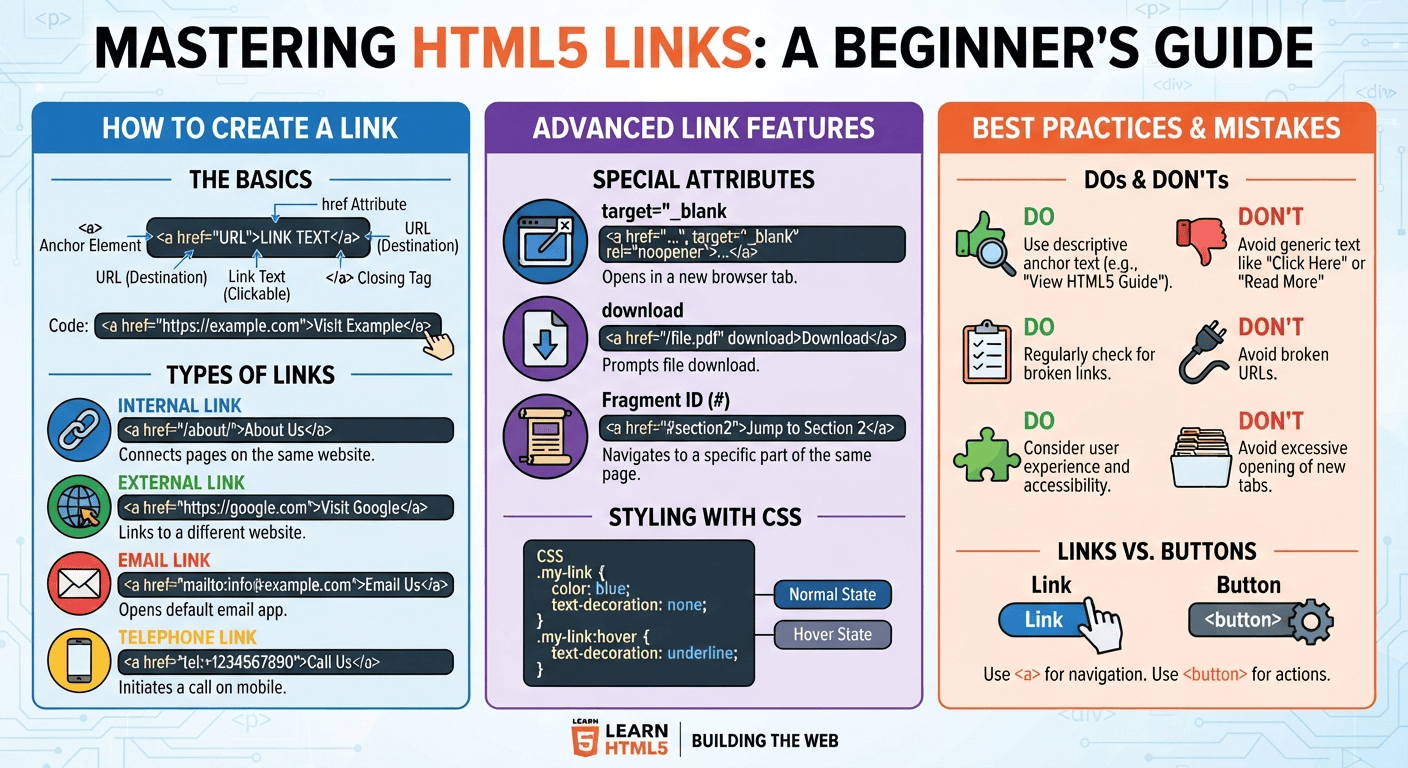
You create links in HTML5 by using the <a> (anchor) element with an href attribute that specifies the destination URL. The basic syntax is <a href="URL">Link Text</a>, which can be used to create internal, external, email, download, and other types of links.
Links are one of the most important elements of the web. They allow users to move from one webpage to another, visit external websites, open specific sections of a page, send an email, download resources, or navigate through different pages of a website.
In HTML5, links are created using the anchor (<a>) element. The <a> element tells the browser that a piece of content should function as a hyperlink, while the href attribute specifies where the link should go.
Whether you are a student learning HTML, a developer building a website, or a freelancer creating websites for clients, understanding HTML links is an essential skill.
What Is a Link in HTML5?
An HTML link is a clickable element that takes users to another destination.
The most basic HTML5 link looks like this:
<a href="https://example.com">Visit Example</a>There are two important parts:
<a>— the anchor element that creates the link.href— the attribute that specifies the destination.https://example.com— the destination URL.Visit Example— the clickable link text.</a>— closes the anchor element.
When a user clicks Visit Example, the browser navigates to the specified URL.
How Do You Create a Basic Link in HTML5?
Creating a basic link requires only an <a> element and an href attribute.
Step 1: Add the <a> Element
Start with the anchor element:
<a></a>Step 2: Add the href Attribute
The href attribute defines the destination:
<a href="https://example.com"></a>Step 3: Add Link Text
Place the text users will click between the opening and closing anchor tags:
<a href="https://example.com">Visit Example</a>This is the complete basic HTML5 hyperlink.
How Do You Create an Internal Link?
An internal link connects one page of your website to another page on the same website.
For example, suppose your website has an HTML5 tutorial located at:
/html5-semantic-elements/You can link to it using:
<a href="/html5-semantic-elements/">Learn About HTML5 Semantic Elements</a>Internal links are particularly useful for blogs and educational websites because they help visitors discover related content.
For example:
<p>
    Learn more about
    <a href="/html5-semantic-elements/">HTML5 semantic elements</a>
    in our beginner's guide.
</p>
Benefits of Internal Links
Internal linking can help:
- Users discover related articles.
- Visitors navigate your website more easily.
- Search engines understand relationships between pages.
- Distribute internal authority between relevant pages.
- Create a better overall content structure.
For SEO-focused websites, internal links should use relevant and descriptive anchor text rather than generic phrases such as “click here.”
How Do You Create an External Link?
An external link points to a different website or domain.
For example:
<a href="https://www.google.com/">Visit Google</a>You can also link to documentation, educational resources, partner websites, or other relevant external sources.
For example:
<p>
    Read more web development documentation on
    <a href="https://developer.mozilla.org/">MDN Web Docs</a>.
</p>
External links can provide additional value to users when they point to trustworthy and relevant resources.
How Do You Open a Link in a New Tab?
You can use the target="_blank" attribute when you want a link to open in a new browser tab or window.
<a href="https://example.com" target="_blank">Visit Example</a>However, when using target="_blank", it is a good practice to include an appropriate rel value:
<a href="https://example.com" target="_blank" rel="noopener">
    Visit Example
</a>
The noopener value helps prevent the newly opened page from accessing the original page through the window.opener property.
Use a new tab thoughtfully rather than opening every link in a new tab.
How Do You Create an Email Link in HTML5?
HTML5 also allows you to create a link that opens the user’s default email application.
Use the mailto: scheme:
<a href="mailto:hello@example.com">Email Us</a>When the user clicks the link, their email application can open with the specified email address.
You can also specify a subject:
<a href="mailto:hello@example.com?subject=Website%20Inquiry">
    Contact Us
</a>
For more complex contact forms, however, a dedicated HTML form is generally more appropriate.
How Do You Create a Telephone Link?
If you are creating a website for a business, a clickable phone number can be especially useful for mobile users.
Use the tel: scheme:
<a href="tel:+1234567890">Call Us</a>On supported devices, clicking the link can open the phone application with the number ready to call.
This is particularly useful for:
- Local businesses
- Restaurants
- Service companies
- Medical practices
- Home-service businesses
- Freelancers and consultants
A clear call link can make it easier for mobile visitors to contact a business.

How Do You Create a Link to a Specific Section of a Page?
HTML5 links can also take users to a specific section of the same page.
First, give the destination element an id:
<h2 id="html-links">HTML Links</h2>Then create a link pointing to that ID:
<a href="#html-links">Jump to HTML Links</a>When the user clicks the link, the browser moves to the element with the matching ID.
This technique is useful for:
- Table of contents
- Long tutorials
- Documentation
- FAQ pages
- Landing pages
- Navigation menus
How Do You Create a Download Link?
You can use the download attribute when you want to provide a downloadable resource.
For example:
<a href="/files/html5-guide.pdf" download>
    Download the HTML5 Guide
</a>
The browser may download the file instead of navigating to it, depending on the browser and server configuration.
You can also suggest a filename:
<a href="/files/html5-guide.pdf" download="html5-beginner-guide.pdf">
    Download Guide
</a>
This can be useful when sharing PDFs, documents, images, or other downloadable resources.
What Is Link Text or Anchor Text?
The clickable words within an HTML link are called anchor text.
For example:
<a href="/html5-forms/">Learn HTML5 Forms</a>Here, Learn HTML5 Forms is the anchor text.
Good anchor text should clearly describe the destination.
Weak Example
<a href="/html5-forms/">Click here</a>Better Example
<a href="/html5-forms/">Learn How to Create HTML5 Forms</a>Descriptive anchor text helps users understand what they can expect after clicking the link.
It can also provide useful context for search engines.
How Do You Add CSS Styling to HTML Links?
HTML creates the link structure, while CSS controls how the link looks.
For example:
<a href="/about/" class="learn-more">Learn More</a>You can style it with:
.learn-more {
    color: #0066cc;
    text-decoration: none;
    font-weight: bold;
}
You can also style the hover state:
.learn-more:hover {
    text-decoration: underline;
}
This allows you to create visually attractive navigation menus, buttons, calls to action, and content links.
HTML5 Links vs. Buttons
A common beginner mistake is using links and buttons interchangeably.
Use an <a> element when the user is navigating to another destination:
<a href="/contact/">Contact Us</a>Use a <button> when the user is performing an action:
<button type="button">Show More</button>The distinction is important for semantic HTML, accessibility, and user experience.
Common Mistakes When Creating HTML5 Links
1. Forgetting the href Attribute
This:
<a>Visit Our Website</a>does not specify a destination.
A normal hyperlink should have an appropriate destination:
<a href="/about/">Visit Our About Page</a>2. Using Unclear Anchor Text
Avoid relying heavily on generic text such as:
<a href="/services/">Click Here</a>Prefer descriptive text:
<a href="/services/">Explore Our Web Development Services</a>3. Using Links for Actions
Do not use an anchor element simply because it looks like a button. Choose the HTML element based on what the user is actually doing.
4. Creating Broken URLs
Always check that your link points to the correct destination. Broken links can frustrate visitors and create poor website experiences.
5. Opening Everything in New Tabs
Using target="_blank" for every link can make navigation confusing. Use it when opening a separate destination in a new tab genuinely benefits the user.
HTML Links and SEO
Links are an important part of SEO because they help search engines discover and understand relationships between pages.
Internal links can connect related topics within your website.
For example, an HTML5 learning website might have:
<a href="/html5-semantic-elements/">HTML5 Semantic Elements</a>

<a href="/how-to-create-paragraphs-in-html5/">
    Create Paragraphs in HTML5
</a>

<a href="/how-to-create-links-in-html5/">
    Create Links in HTML5
</a>
These connections help create a logical topic structure.
For SEO, focus on:
- Relevant internal links
- Descriptive anchor text
- Working URLs
- Useful destination pages
- Natural placement within content
- Avoiding excessive or forced linking
Links should primarily help users navigate and discover useful information.
Practical Example for a Student Portfolio
Imagine you are creating a student portfolio website.
<h1>My Web Development Portfolio</h1>

<p>
    I am learning HTML5, CSS, and JavaScript to build modern websites.
</p>

<p>
    You can
    <a href="/projects/">view my web development projects</a>
    to see what I have created.
</p>

<p>
    If you would like to contact me,
    <a href="/contact/">visit my contact page</a>.
</p>
This example demonstrates how links can naturally connect different sections of a website.
Practical Example for Freelancers
Freelancers can use HTML links to connect service pages, portfolios, contact pages, and external profiles.
<h2>Web Development Services</h2>

<p>
    I build responsive websites for small businesses and startups.
</p>

<p>
    <a href="/portfolio/">View my portfolio</a>
    or
    <a href="/contact/">contact me</a>
    to discuss your project.
</p>
This simple structure creates a clear path from information to action.
Best Practices for HTML5 Links
Keep these best practices in mind:
- Use the
<a>element for navigation. - Use
hrefto specify the destination. - Write descriptive anchor text.
- Use relative URLs for appropriate internal links.
- Use absolute URLs when linking to external destinations.
- Check links regularly for errors.
- Use
target="_blank"selectively. - Consider
rel="noopener"when usingtarget="_blank". - Use
tel:for clickable phone numbers. - Use
mailto:for email links when appropriate. - Use fragment links for navigation within long pages.
- Use CSS instead of HTML attributes for visual styling.
- Keep accessibility and user experience in mind.
Frequently Asked Questions
What tag is used to create a link in HTML5?
The <a> anchor element is used to create links in HTML5.
What does href mean in HTML?
href specifies the destination of a hyperlink. It commonly contains a URL, but it can also contain an email address, telephone number, fragment identifier, or other supported destination.
How do I link one HTML page to another?
Use the <a> element with the destination page in the href attribute:
<a href="about.html">About Us</a>How do I create an external link?
Use the full URL:
<a href="https://example.com">Visit Example</a>Can an image be a link in HTML5?
Yes. You can place an image inside an anchor element:
<a href="/home/">
    <img src="logo.png" alt="Home">
</a>
The image then becomes clickable.
Final Thoughts
Creating links in HTML5 is simple, but links are fundamental to how the web works. By using the <a> element with a properly defined href attribute, you can connect webpages, external resources, specific sections, downloadable files, email addresses, and telephone numbers.
For beginners, start by mastering basic links and internal navigation. As you progress, learn how to use descriptive anchor text, fragment links, download links, accessible navigation, and appropriate link attributes.
For students, understanding HTML links provides an important foundation for learning web development. For developers and freelancers, using links correctly helps create websites that are easier to navigate, more maintainable, and more useful for visitors.