
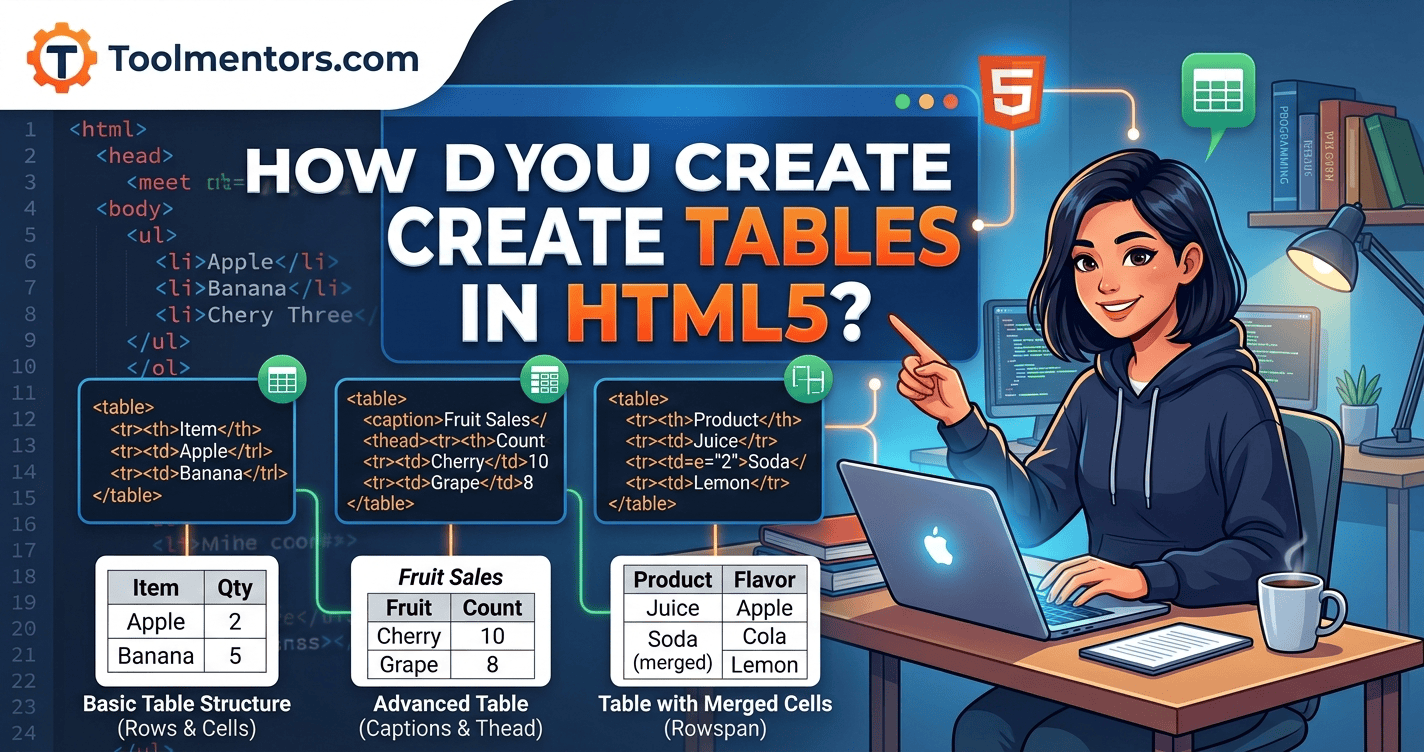
HTML5 tables are created using the <table> element, with <tr> for rows, <th> for header cells, and <td> for data cells. You can organize information into rows and columns, add captions and table sections, and use CSS to make tables readable, responsive, and visually appealing.
What Are Tables in HTML5?
HTML5 tables are used to display structured data in rows and columns. They help organize related information so users can compare values, understand relationships, and find important details quickly.
For example, a student might use an HTML table to display exam results, while a freelancer might create a pricing comparison table for different service packages. Businesses also use tables to present product specifications, schedules, financial summaries, and reports.
HTML tables use several elements to organize information:
<table>defines the table.<tr>creates a table row.<th>defines a header cell.<td>defines a standard data cell.<caption>provides a title or description for the table.<thead>groups header rows.<tbody>groups the main data rows.<tfoot>groups footer rows, often containing totals or summaries.
Understanding these elements is the first step toward creating well-structured HTML5 tables.
1. How to Create a Basic Table in HTML5
The simplest way to create a table is to use the <table>, <tr>, <th>, and <td> elements. Each row contains cells, and each cell holds a heading or a piece of data.
Example of a Basic HTML5 Table
<!DOCTYPE html>
<html lang="en">
<head>
    <meta charset="UTF-8">
    <meta name="viewport" content="width=device-width, initial-scale=1.0">
    <title>HTML5 Table Example</title>
</head>
<body>

    <h1>Student Results</h1>

    <table>
        <tr>
            <th>Name</th>
            <th>Subject</th>
            <th>Marks</th>
        </tr>
        <tr>
            <td>Ali</td>
            <td>HTML5</td>
            <td>90</td>
        </tr>
        <tr>
            <td>Sara</td>
            <td>CSS3</td>
            <td>85</td>
        </tr>
        <tr>
            <td>Ahmed</td>
            <td>JavaScript</td>
            <td>92</td>
        </tr>
    </table>

</body>
</html>
How Does This Code Work?
- The
<table>element creates the table. - The first
<tr>contains three header cells. - Each
<th>identifies a column heading. - The following
<tr>elements create rows of student data. - The
<td>elements contain individual values.
When you open this file in a browser, the table will display student names, subjects, and marks in separate columns.
By default, browsers do not necessarily show borders around table cells. You can add borders and spacing with CSS to make the table easier to read.
2. Understanding HTML5 Table Rows, Columns, and Cells
Before building more advanced tables, it is important to understand how rows, columns, and cells work together.
Table Rows
The <tr> element represents a row in a table. Each row usually contains one or more header or data cells.
For example:
<tr>
    <td>HTML</td>
    <td>Beginner</td>
</tr>
This row contains two cells: one for the subject and another for the difficulty level.
Table Header Cells
The <th> element identifies a heading for a row or column. Browsers commonly display header cells in bold text, but their most important purpose is to provide semantic meaning.
Example:
<tr>
    <th>Product</th>
    <th>Price</th>
</tr>
You can use the scope attribute to identify whether a header applies to a column or row.
<th scope="col">Product</th>
<th scope="col">Price</th>
For a row heading, use scope="row".
These attributes can help assistive technologies communicate table relationships to users.
Table Data Cells
The <td> element contains the actual data displayed in a table.
Example:
<tr>
    <td>Website Design</td>
    <td>$250</td>
</tr>
Use <td> for regular data and <th> for meaningful row or column headings.
3. How to Add Borders and Styling to HTML5 Tables
CSS allows you to customize table borders, spacing, colors, typography, and alignment. A well-designed table makes information easier to scan and improves the overall user experience.
Example of a Styled HTML5 Table
<!DOCTYPE html>
<html lang="en">
<head>
    <meta charset="UTF-8">
    <meta name="viewport" content="width=device-width, initial-scale=1.0">
    <title>Styled HTML5 Table</title>

    <style>
        table {
            width: 100%;
            border-collapse: collapse;
        }

        th, td {
            border: 1px solid #dddddd;
            padding: 12px;
            text-align: left;
        }

        th {
            background-color: #eeeeee;
        }

        tbody tr:nth-child(even) {
            background-color: #f7f7f7;
        }
    </style>
</head>
<body>

    <h1>Web Development Courses</h1>

    <table>
        <thead>
            <tr>
                <th scope="col">Course</th>
                <th scope="col">Duration</th>
                <th scope="col">Level</th>
            </tr>
        </thead>
        <tbody>
            <tr>
                <td>HTML5</td>
                <td>2 Weeks</td>
                <td>Beginner</td>
            </tr>
            <tr>
                <td>CSS3</td>
                <td>3 Weeks</td>
                <td>Beginner</td>
            </tr>
            <tr>
                <td>JavaScript</td>
                <td>6 Weeks</td>
                <td>Intermediate</td>
            </tr>
        </tbody>
    </table>

</body>
</html>
Important CSS Properties for Tables
border-collapse: collapse
Combines adjacent cell borders into a single border, creating a cleaner appearance.
width: 100%
Allows the table to use the available width of its container.
padding
Adds space inside cells so text does not appear cramped.
text-align
Controls the horizontal alignment of cell content. Common values include left, center, and right.
background-color
Adds background colors to headings, rows, or individual cells.
nth-child(even)
Targets even-numbered rows, making it possible to create alternating row colors. This effect is often called zebra striping.
CSS gives you control over the appearance of a table without changing its underlying HTML structure.
4. How to Use thead, tbody, and tfoot in HTML5
HTML5 supports table section elements that help organize related rows into meaningful groups.
<thead>groups the header rows.<tbody>groups the main data rows.<tfoot>groups footer rows, such as totals or summaries.
These elements are especially useful when creating financial reports, product lists, student records, and other tables with distinct sections.
Example of a Table with Sections
<table>
    <caption>Monthly Website Expenses</caption>

    <thead>
        <tr>
            <th scope="col">Expense</th>
            <th scope="col">Amount</th>
        </tr>
    </thead>

    <tbody>
        <tr>
            <td>Hosting</td>
            <td>$20</td>
        </tr>
        <tr>
            <td>Domain</td>
            <td>$15</td>
        </tr>
        <tr>
            <td>Website Tools</td>
            <td>$25</td>
        </tr>
    </tbody>

    <tfoot>
        <tr>
            <th scope="row">Total</th>
            <td>$60</td>
        </tr>
    </tfoot>
</table>
Why Are Table Sections Useful?
Table sections make your code easier to understand and maintain. They also help developers apply different styles to headings, main content, and summary rows.
The <caption> element provides a descriptive title for the table. This is particularly helpful when multiple tables appear on the same page.
5. How to Merge Cells in HTML5 Tables
Sometimes, a table needs a cell to cover multiple columns or rows. HTML5 provides two useful attributes for this purpose: colspan and rowspan.
Using colspan
The colspan attribute allows a cell to span multiple columns.
<table>
    <tr>
        <th colspan="2">Student Information</th>
    </tr>
    <tr>
        <td>Name</td>
        <td>Ali</td>
    </tr>
</table>
In this example, the heading spans two columns.
Common uses for colspan include grouped headings, report summaries, and section labels.
Using rowspan
The rowspan attribute allows a cell to span multiple rows.
<table>
    <tr>
        <th rowspan="2">Course</th>
        <th scope="col">Student</th>
    </tr>
    <tr>
        <th scope="col">Instructor</th>
    </tr>
</table>
Here, the Course heading spans two rows.
When using rowspan and colspan, plan your table structure carefully. Every row should align logically, and merged cells should not make the information difficult to interpret.
6. Step-by-Step Guide to Creating Your First HTML5 Table
If you are a beginner, follow these steps to build a simple table from scratch.
Step 1: Open a Code Editor
Use Visual Studio Code, Notepad++, or any text editor that supports HTML.
Step 2: Create an HTML File
Create a new file named html-table.html.
Step 3: Add the HTML Document Structure
Start with <!DOCTYPE html>, followed by the <html>, <head>, and <body> elements.
Step 4: Insert the Table Element
Add the <table> element where you want the data to appear on the page.
Step 5: Create the Header Row
Use <tr> to create the row and <th> for each column heading.
Step 6: Add Your Data
Create additional rows using <tr> and add individual values inside <td> elements.
Step 7: Add Semantic Table Sections
For larger tables, group header and data rows using <thead> and <tbody>. Add a <caption> when a descriptive title would help users understand the table.
Step 8: Apply CSS Styling
Add borders, padding, background colors, and alignment to improve readability.
Step 9: Test the Table in a Browser
Save the file and open it in a web browser. Check that all rows and columns are aligned and that the content remains readable at different screen sizes.
By following these steps, you can build a functional HTML5 table and gradually improve its design.
7. How to Make HTML5 Tables Responsive
Responsive design is important because visitors may view your website on desktops, tablets, or smartphones. A table with many columns can become difficult to read on a small screen.
One simple solution is to place the table inside a horizontally scrollable container.
Example of a Responsive Table
<style>
    .table-container {
        width: 100%;
        overflow-x: auto;
    }

    table {
        width: 100%;
        min-width: 500px;
        border-collapse: collapse;
    }

    th, td {
        border: 1px solid #cccccc;
        padding: 10px;
        text-align: left;
    }
</style>

<div class="table-container">
    <table>
        <thead>
            <tr>
                <th scope="col">Product</th>
                <th scope="col">Category</th>
                <th scope="col">Price</th>
                <th scope="col">Availability</th>
            </tr>
        </thead>
        <tbody>
            <tr>
                <td>Laptop</td>
                <td>Electronics</td>
                <td>$800</td>
                <td>In Stock</td>
            </tr>
            <tr>
                <td>Keyboard</td>
                <td>Accessories</td>
                <td>$40</td>
                <td>In Stock</td>
            </tr>
        </tbody>
    </table>
</div>
The overflow-x: auto property allows horizontal scrolling when the table is wider than its container. The min-width value prevents the cells from becoming excessively narrow.
For very large datasets, consider whether a table is the best way to present the information on mobile devices. You may need additional layout changes or a different presentation strategy.

8. Best Practices for Creating HTML5 Tables
Follow these best practices to create tables that are useful, accessible, and easy to maintain.
- Use tables for tabular data: Do not use HTML tables as the primary layout system for an entire webpage. Use CSS Flexbox or Grid for page layouts.
- Add meaningful headers: Use
<th>elements to identify the information in rows and columns. - Include a caption when appropriate: A descriptive caption helps users understand the table’s purpose.
- Keep the structure consistent: Ensure each row contains the expected number of cells, accounting for any merged cells.
- Use CSS for presentation: Avoid relying on outdated HTML presentation attributes for borders, spacing, and colors.
- Consider accessibility: Use
scope="col"andscope="row"where appropriate, and provide more complex header associations when needed. - Make tables mobile-friendly: Test wide tables on smaller screens and provide horizontal scrolling or another suitable responsive design.
- Keep information concise: Use clear headings and avoid unnecessary columns that make comparisons difficult.
These practices help make tables more effective for both users and developers.
9. Why Learning HTML5 Tables Matters for Students, Developers, and Freelancers
Learning HTML5 tables is valuable for anyone working with websites or studying web development.
For Students
Tables are a practical way to learn HTML elements, attributes, and document structure. Students can practice by creating exam results, class schedules, assignment records, and project summaries.
For Web Developers
Developers use tables to display structured information from databases, APIs, and content management systems. Examples include inventory reports, financial summaries, analytics data, and administrative dashboards.
Understanding table semantics also makes it easier to create accessible interfaces.
For Freelancers
Freelancers can use HTML tables to build pricing comparisons, service feature lists, product specifications, and business reports. A well-designed table can help clients compare options and make informed decisions.
For SEO and Accessibility
Search engines can process structured HTML, and assistive technologies can use semantic table markup to communicate relationships between headings and data. Tables do not automatically improve search rankings, but clear organization can support a better user experience.
For anyone learning WordPress, React, or other frontend technologies, the same core HTML table concepts remain useful.
Conclusion
Creating tables in HTML5 is easy once you understand the role of each element. Use <table> to define the table, <tr> to create rows, <th> for headings, and <td> for data cells. Organize larger tables with <thead>, <tbody>, and <tfoot>, and use CSS to improve readability and responsiveness.
Start with a basic table, then practice adding captions, merged cells, semantic headers, and responsive styling. These skills will help you build professional, accessible websites and prepare you for more advanced web development projects.