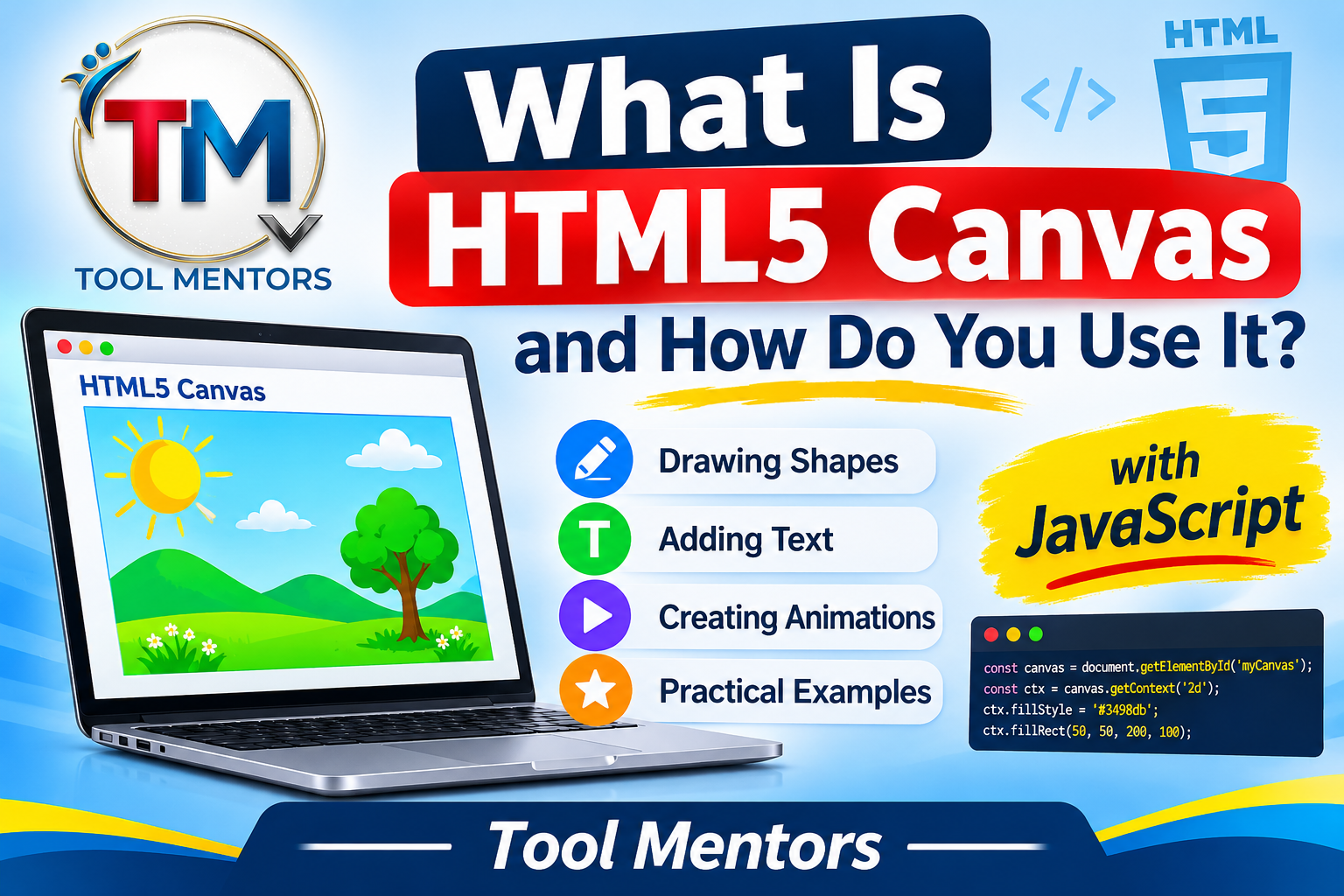
HTML5 Canvas is an HTML element that allows developers to create graphics, drawings, animations, charts, and interactive visual content directly inside a web browser using JavaScript. You can use the HTML Canvas element with JavaScript drawing methods to create shapes, add colors, display text, manipulate images, and build browser-based games without requiring additional plugins.
What Is HTML5 Canvas?
HTML5 Canvas is a powerful feature of HTML5 that provides a drawing area on a webpage. Developers use the <canvas> element to create and display graphics dynamically with JavaScript.
Unlike traditional HTML elements, which display text, images, and other predefined content, Canvas gives developers control over individual pixels on a drawing surface. This makes it useful for creating interactive graphics, data visualizations, animations, and simple browser games.
The HTML Canvas element works with JavaScript to render visual content. For example, you can draw rectangles, circles, lines, and custom shapes, as well as add text and images.
If you are learning HTML, explore our HTML5 Complete Guide for Beginners to understand other important HTML5 elements and features.
How Does HTML5 Canvas Work?
HTML5 Canvas works through a combination of HTML and JavaScript. First, you create a drawing area using the <canvas> element. Then, JavaScript accesses its drawing context and uses different methods to display graphics.
The browser provides a coordinate system for positioning objects. The top-left corner represents the starting point (0, 0). Moving right increases the X-coordinate, while moving down increases the Y-coordinate.
For example, if you want to draw a rectangle at position (20, 30), JavaScript uses those coordinates to determine where the rectangle should appear.
The Canvas API supports different rendering contexts. The most common is the 2D context, which is used for everyday drawing tasks. WebGL is another option for more advanced, hardware-accelerated graphics.
How to Use HTML5 Canvas in HTML
Using HTML5 Canvas is straightforward, even for beginners. You only need a basic understanding of HTML and JavaScript.
Follow these steps to create your first canvas.
Step 1: Create the Canvas Element
Start by adding the <canvas> element inside your HTML body.
<!DOCTYPE html>
<html>
<head>
    <title>My First Canvas</title>
</head>
<body>

    <canvas id="myCanvas" width="400" height="250">
        Your browser does not support HTML5 Canvas.
    </canvas>

</body>
</html>
Here is what each attribute does:
id: Identifies the canvas so JavaScript can access it.width: Sets the drawing area’s width.height: Sets the drawing area’s height.- Fallback text: Provides alternative content if Canvas is unsupported.
Step 2: Access Canvas Using JavaScript
Next, use JavaScript to select the canvas and access its 2D drawing context.
const canvas = document.getElementById("myCanvas");
const ctx = canvas.getContext("2d");
The getElementById() method selects the canvas element, while getContext("2d") provides the drawing tools.
Step 3: Draw Your First Rectangle
Now, use the fillRect() method to draw a rectangle.
ctx.fillStyle = "blue";
ctx.fillRect(50, 50, 200, 100);
This code creates a blue rectangle with a width of 200 pixels and a height of 100 pixels.
Congratulations! You have created your first HTML5 Canvas graphic.
How to Draw Shapes on HTML5 Canvas
One of the most useful features of Canvas is its ability to create different shapes using JavaScript. You can draw rectangles, circles, lines, triangles, and more complex graphics.
Here are some common examples.
1. Draw a Rectangle
Use fillRect() to create a filled rectangle.
ctx.fillStyle = "green";
ctx.fillRect(20, 20, 150, 80);
2. Draw a Circle
Use the arc() method to create a circle.
ctx.beginPath();
ctx.arc(100, 100, 50, 0, Math.PI * 2);
ctx.fillStyle = "red";
ctx.fill();
The arc() method defines the circle’s position, radius, and starting and ending angles.
3. Draw a Line
Use moveTo() and lineTo() to create a straight line.
ctx.beginPath();
ctx.moveTo(50, 50);
ctx.lineTo(200, 150);
ctx.strokeStyle = "black";
ctx.lineWidth = 3;
ctx.stroke();
These examples demonstrate how HTML Canvas JavaScript methods can create different visual elements.
Common HTML Canvas Drawing Methods
Understanding the main HTML Canvas drawing methods will help you build more advanced graphics and interactive projects.
Here are some commonly used methods:
| Method | Purpose |
|---|---|
fillRect() |
Draws a filled rectangle |
strokeRect() |
Draws a rectangle outline |
clearRect() |
Clears a rectangular area |
beginPath() |
Starts a new drawing path |
moveTo() |
Moves the drawing position |
lineTo() |
Creates a straight line |
arc() |
Creates circles and curved shapes |
fill() |
Fills a shape with color |
stroke() |
Draws a shape outline |
fillText() |
Displays text on Canvas |
drawImage() |
Draws an image on Canvas |
Learning these HTML Canvas drawing methods makes it easier to create professional graphics and interactive web applications.
How to Add Colors and Text to HTML5 Canvas
Canvas also allows you to customize graphics with different colors, fonts, and text styles.
For example, you can use fillStyle to change the color of a shape and strokeStyle to customize its outline.
To add text, use the fillText() method.
ctx.font = "30px Arial";
ctx.fillStyle = "purple";
ctx.fillText("Hello Canvas!", 50, 100);
This example displays purple text on the canvas.
You can also use strokeText() to display text with an outline instead of a filled appearance.
These features are useful when creating charts, labels, diagrams, and interactive visual designs.
What Can You Create with HTML5 Canvas?
HTML5 Canvas offers several possibilities for web developers, students, and designers.
Some popular applications include:
- Browser Games: Create simple 2D games, moving objects, and interactive gaming experiences.
- Animations: Build animated graphics and moving objects using JavaScript.
- Data Visualization: Display charts, graphs, and visual reports.
- Image Editing: Apply effects, crop images, and manipulate pixels.
- Interactive Drawings: Build digital drawing boards and painting applications.
- Educational Projects: Create interactive diagrams and visual learning tools.
For students and beginners, experimenting with HTML5 Canvas examples is an excellent way to improve practical HTML and JavaScript skills.
HTML5 Canvas vs SVG: What Is the Difference?
HTML5 Canvas and SVG are both used to create graphics in web browsers, but they work differently.
Canvas uses pixels to display graphics, while SVG uses scalable vector graphics based on XML markup.
| Feature | HTML5 Canvas | SVG |
|---|---|---|
| Graphics type | Raster-based | Vector-based |
| Rendering | JavaScript drawing | XML-based elements |
| Scalability | Can become blurry when enlarged | Scales without losing quality |
| Interaction | Usually handled through JavaScript | Individual elements can have events |
| Best for | Games, animations, image processing | Icons, diagrams, scalable illustrations |
Choose Canvas when you need to render complex or frequently changing graphics. SVG is often better for logos, icons, diagrams, and graphics that need to remain sharp at different sizes.
Benefits of Using HTML5 Canvas
HTML5 Canvas provides several benefits for modern web development.
- No Additional Plugins: You can create graphics directly in supported browsers without installing extra software.
- JavaScript Integration: Developers can control graphics dynamically using JavaScript.
- Interactive Content: Canvas supports animations, games, and user-driven drawing experiences.
- Flexible Drawing Options: You can create shapes, text, images, and custom designs.
- Browser Compatibility: Modern browsers widely support the Canvas API.
- Useful for Learning: Beginners can practice programming concepts through visual projects.
However, Canvas content is bitmap-based and does not automatically expose individual drawn objects to screen readers. For accessible websites, provide meaningful fallback content and equivalent HTML information where needed.
Frequently Asked Questions About HTML5 Canvas
1. What is HTML5 Canvas and how does it work?
HTML5 Canvas is an HTML element that provides a drawing surface for creating graphics through JavaScript. It works by using a rendering context to display shapes, text, images, and animations.
2. How do you use the HTML5 Canvas element in HTML?
Add the <canvas> element to your HTML document, assign it an ID, and use JavaScript to access it through getElementById() and getContext("2d").
3. Do you need JavaScript to draw on HTML5 Canvas?
Yes. JavaScript is generally used to access the Canvas API and create graphics, animations, and interactive visual content.
4. How do you draw shapes on HTML5 Canvas?
You can draw shapes using methods such as fillRect(), strokeRect(), arc(), moveTo(), and lineTo().
5. How do you draw a circle and rectangle using HTML Canvas?
Use fillRect() to draw a rectangle and arc() with fill() to draw a filled circle.
6. How do you add colors and text to HTML5 Canvas?
Use fillStyle or strokeStyle to change colors. Use fillText() or strokeText() to add text to the drawing area.
7. What are the most commonly used HTML Canvas methods?
Common methods include fillRect(), clearRect(), strokeRect(), beginPath(), moveTo(), lineTo(), arc(), fill(), and stroke().
8. What is the difference between HTML5 Canvas and SVG?
Canvas renders graphics using pixels, while SVG uses scalable vector graphics. Canvas is useful for games and dynamic graphics, whereas SVG is ideal for icons, illustrations, and scalable designs.
9. Can HTML5 Canvas be used to create animations and games?
Yes. Developers can use JavaScript with Canvas to animate objects, create game environments, and build interactive browser-based games.
10. Is HTML5 Canvas supported by all modern browsers?
Yes. Modern versions of major browsers support HTML5 Canvas. However, older browsers may have limited or no support.
Conclusion
HTML5 Canvas is an important feature for creating dynamic and interactive web graphics. By combining the HTML Canvas element with JavaScript, developers can draw shapes, display text, create animations, manipulate images, and build simple browser games.
Whether you are a student learning web development or a developer building interactive applications, understanding how to use HTML5 Canvas can expand your programming skills.
Start with simple shapes, experiment with different drawing methods, and gradually create more advanced projects.
Explore more tutorials on ToolMentors and continue learning with our HTML5 Complete Guide for Beginners.
If you find our tutorials helpful, you can also buy us a cup of coffee to support our educational c