
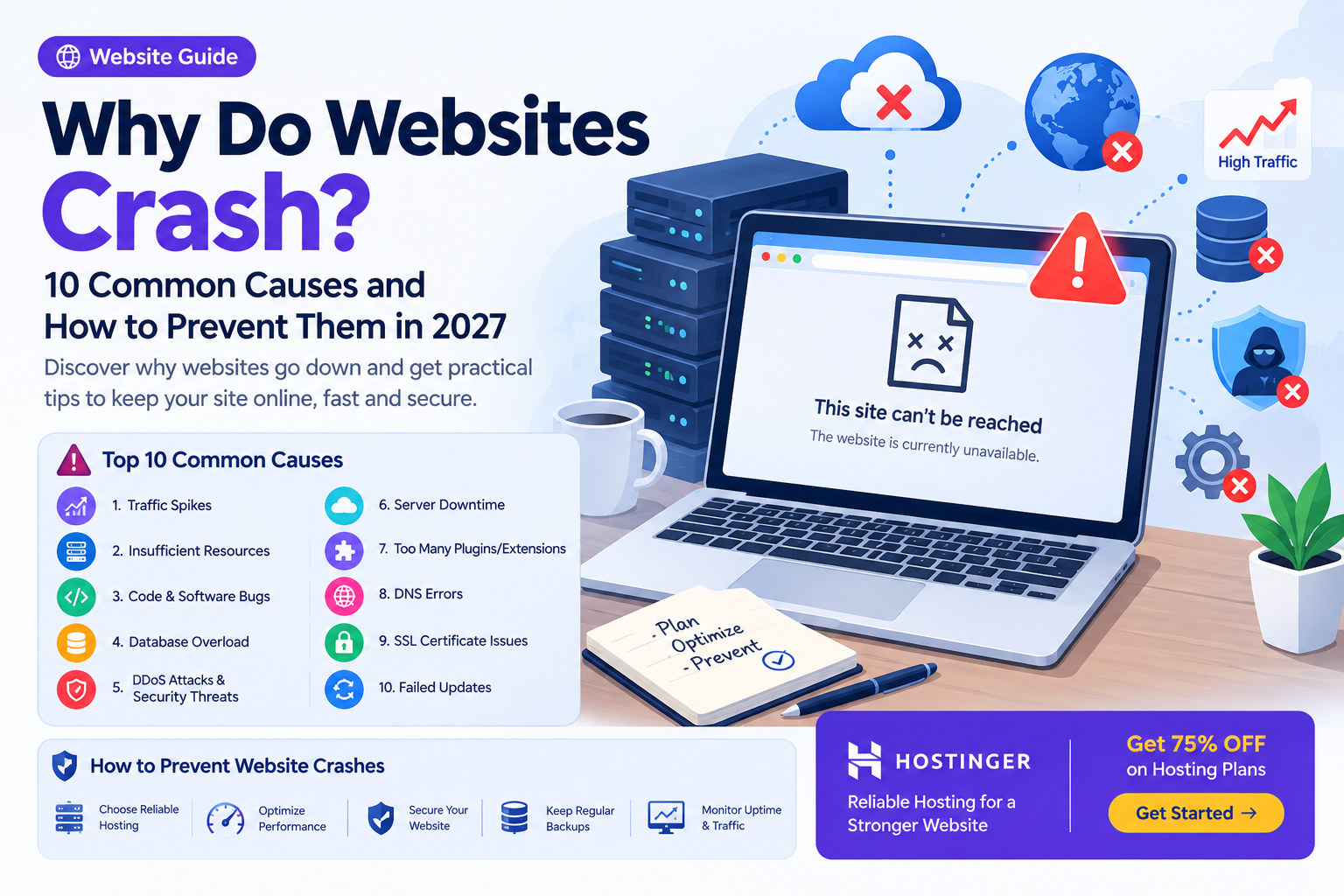
Websites crash when their servers, databases, applications, or network infrastructure cannot handle requests properly due to traffic spikes, resource limits, software errors, or security attacks. You can prevent website crashes in 2027 by choosing reliable hosting, monitoring performance, optimizing code and databases, securing your website, and preparing for unexpected traffic increases.
What Does It Mean When a Website Crashes?
A website crash occurs when a website becomes unavailable, stops responding, displays errors, or fails to load properly for visitors. Sometimes, the entire website goes offline, while in other cases, only certain features, such as login pages, checkout systems, or contact forms, stop working.
For example, imagine you run an online store and launch a promotional campaign. Hundreds of visitors arrive simultaneously, but your hosting server cannot process all their requests. Your website becomes slow, displays a 503 error, or stops responding completely.
Website crashes can affect businesses, bloggers, students, developers, and freelancers. Even a short outage can lead to lost sales, frustrated visitors, and missed opportunities.
Understanding why websites crash is the first step toward preventing downtime and maintaining a reliable online presence.

10 Common Reasons Why Websites Crash in 2027
Here are ten common causes of website crashes and practical ways to prevent them.
1. Sudden Traffic Spikes
One of the most common reasons websites crash is receiving more traffic than the hosting infrastructure can handle.
Every visitor generates requests to your website. These requests consume server resources such as CPU, RAM, bandwidth, and database connections.
If thousands of visitors arrive simultaneously, a website with limited resources may struggle to respond.
Real-world example
A blogger publishes an article that suddenly becomes popular on social media. Thousands of users click the link within a few minutes.
If the hosting server is not prepared for the traffic spike, visitors may experience slow loading, timeouts, or server errors.
How to prevent traffic-related crashes
-
Choose hosting with sufficient CPU and RAM.
-
Use a Content Delivery Network (CDN) to deliver cached content.
-
Enable page caching where appropriate.
-
Optimize images and other large files.
-
Use load balancing when your website requires multiple servers.
-
Monitor traffic patterns and prepare for marketing campaigns.
For growing websites, scalable hosting can help accommodate increasing traffic without requiring a complete infrastructure rebuild.
2. Insufficient Hosting Resources
Your hosting plan determines how much server capacity is available to run your website.
If your website consumes more resources than your hosting environment allows, performance can deteriorate or requests may fail.
Common resource limitations include:
-
Insufficient RAM.
-
High CPU usage.
-
Limited PHP workers.
-
Too many simultaneous database connections.
-
Storage capacity reaching its limit.
-
Hosting account resource restrictions.
For example, a WordPress website with multiple plugins, large images, and complex database queries may consume more resources than a simple static website.
How to prevent resource-related crashes
Start by reviewing your hosting resource usage.
Check CPU utilization, memory consumption, storage availability, and error logs. If your website regularly reaches its resource limits, consider optimizing it or upgrading to a more suitable hosting plan.
For students, freelancers, and small business owners, choosing a hosting provider such as Hostinger can provide a starting point for building and managing websites. Compare available plans and their resource limits before selecting one.
The right hosting plan should match your website’s traffic, technology, and expected growth.
3. Poor Website Coding and Software Bugs
Website crashes do not always happen because of hosting problems. Sometimes, the issue is caused by poorly written code or software bugs.
A programming error can prevent a website from processing requests correctly.
For example, a developer may introduce an infinite loop that consumes CPU resources or create a function that repeatedly sends requests to an API.
Other common coding issues include:
-
Unhandled exceptions.
-
Infinite loops.
-
Memory leaks.
-
Incorrect database queries.
-
Broken API integrations.
-
Incompatible software updates.
How to prevent coding-related crashes
Developers should test code changes before deploying them to a live website.
Follow these practices:
-
Use a staging environment for testing.
-
Review code before deployment.
-
Add error handling to important functions.
-
Monitor application logs.
-
Use automated tests where appropriate.
-
Maintain a rollback plan for failed deployments.
For freelancers managing client websites, these practices can reduce the risk of introducing errors during updates and help restore service more quickly if something goes wrong.
4. Database Overload or Connection Failures
Most dynamic websites rely on databases to store and retrieve information.
WordPress websites, e-commerce stores, membership platforms, and web applications may depend on databases such as MySQL or PostgreSQL.
When a database becomes overloaded or unavailable, the website may stop functioning correctly.
For example, an online store may need to retrieve product information, check inventory, and process customer orders. If its database cannot handle these operations, visitors may encounter errors or failed transactions.
Common database problems
-
Too many simultaneous connections.
-
Slow or inefficient queries.
-
Missing database indexes.
-
Database server downtime.
-
Excessive database size.
-
Corrupted database tables.
How to prevent database crashes
Optimize database queries and use indexes where appropriate. Remove unnecessary data carefully, monitor connection usage, and configure database resources according to your application’s needs.
For WordPress websites, regular maintenance can also help reduce unnecessary database overhead.
If your application receives substantial traffic, consider database monitoring, connection pooling, and appropriate caching strategies.
Important: Database caching must be configured carefully. Cached information can become outdated, and some data should never be shared across users.
5. DDoS Attacks and Other Security Threats
A Distributed Denial-of-Service (DDoS) attack attempts to overwhelm a website or its infrastructure with excessive traffic or requests.
When the attack consumes available resources, legitimate visitors may be unable to access the website.
Other security incidents can also cause downtime, including compromised plugins, malicious scripts, and unauthorized changes to website files.
How to prevent security-related crashes
Protect your website with multiple layers of security.
-
Use a reputable web application firewall (WAF).
-
Consider DDoS protection through your hosting provider or CDN.
-
Keep your CMS, themes, and plugins updated.
-
Use strong passwords and multifactor authentication.
-
Remove unused plugins and extensions.
-
Monitor unusual traffic and suspicious activity.
-
Maintain secure backups.
A CDN can help absorb or filter certain types of malicious traffic, but not every CDN provides the same level of DDoS protection.
Choose security features according to your website’s risk level and hosting environment.
6. Hosting Server Downtime
Sometimes, your website crashes because the hosting server itself becomes unavailable.
Hosting infrastructure may experience downtime due to hardware failures, network problems, maintenance, software issues, or data center incidents.
Even a well-optimized website cannot remain accessible if its origin server is completely unavailable and no suitable fallback exists.
How to reduce hosting-related downtime
Choose a hosting provider with a documented uptime commitment, reliable infrastructure, and accessible technical support.
You should also:
-
Monitor website availability.
-
Maintain regular backups.
-
Understand your hosting provider’s recovery procedures.
-
Check whether your plan supports automatic backups.
-
Consider redundancy for business-critical websites.
For websites that generate revenue, evaluate whether the cost of higher availability is justified by the potential impact of downtime.
7. Too Many Plugins, Themes, or Extensions
Plugins and extensions add useful functionality, but installing too many can increase complexity and create compatibility problems.
For example, a WordPress website may use multiple plugins for caching, security, image optimization, forms, and SEO.
If two plugins attempt to modify the same resources or apply conflicting caching rules, the website may behave unexpectedly.
Some plugins may also contain bugs or consume excessive server resources.
How to prevent plugin-related crashes
-
Install only the plugins your website actually needs.
-
Use reputable plugins with ongoing maintenance.
-
Check compatibility before updating.
-
Test updates on a staging website.
-
Remove unused themes and plugins.
-
Avoid running multiple plugins that perform the same task.
If your website crashes immediately after installing or updating a plugin, investigate that change first.
A controlled rollback can help restore the previous working state while you identify the underlying issue.
8. DNS Configuration Errors
The Domain Name System (DNS) translates domain names into the information browsers use to connect to websites.
If DNS records are configured incorrectly, visitors may be unable to reach your website even when the hosting server is working properly.
Common DNS problems include:
-
Incorrect A or AAAA records.
-
Incorrect nameserver settings.
-
Expired domain registration.
-
Mistakes during DNS migration.
-
Incorrect CNAME records.
-
DNSSEC configuration problems.
How to prevent DNS-related outages
Before changing DNS records, document your current configuration.
Confirm that your domain points to the correct hosting destination, and verify that important records for email and other services remain intact.
When migrating a website, plan DNS changes carefully and allow time for DNS caching and propagation.
Avoid deleting existing records unless you understand what they control.
9. Expired SSL Certificates or HTTPS Configuration Problems
SSL/TLS certificates help establish encrypted connections between visitors and websites.
If a certificate expires or is configured incorrectly, browsers may display security warnings or refuse to establish a secure connection.
In some cases, HTTPS configuration problems can cause redirect loops or make parts of a website inaccessible.
How to prevent SSL-related problems
-
Enable automatic certificate renewal where available.
-
Monitor certificate expiration dates.
-
Verify that HTTPS works correctly after website migrations.
-
Check redirects between HTTP and HTTPS.
-
Ensure the certificate covers the correct domain names.
-
Test your website after changing SSL settings.
A valid certificate alone does not guarantee website availability, but correct HTTPS configuration is essential for secure and reliable access.
10. Failed Updates and Software Compatibility Issues
Website software needs regular updates to maintain security, compatibility, and functionality.
However, an update can sometimes introduce a bug or conflict with existing software.
For example, updating a PHP version may affect an older WordPress plugin that depends on deprecated functionality.
Similarly, updating a theme or framework may break a custom feature.
How to prevent update-related crashes
Use a structured update process:
-
Create a backup before making significant changes.
-
Review the update notes and compatibility requirements.
-
Test the update in a staging environment.
-
Check important website features after updating.
-
Monitor error logs and performance.
-
Roll back if the update causes a serious issue.
For business websites, avoid making major updates during peak traffic periods unless an urgent security issue requires immediate action.
How to Troubleshoot a Website That Has Already Crashed
If your website is currently unavailable, follow these steps to identify the cause and restore service.
Website Crash Troubleshooting Checklist
0 of 8 completed
Understand Common Website Error Codes
|
Error |
What it usually means |
|---|---|
|
500 |
Internal server error |
|
502 |
Gateway received an invalid response |
|
503 |
Service temporarily unavailable |
|
504 |
Gateway timed out waiting for a response |
|
DNS error |
Domain could not be resolved correctly |
These codes provide clues, not definitive diagnoses. Review server logs and hosting status to identify the actual cause.
How to Prevent Website Crashes Before They Happen
The most effective approach is to combine reliable infrastructure with ongoing maintenance.
1. Monitor Website Uptime
Use uptime monitoring to detect when your website becomes unavailable.
Monitoring tools can check your website at regular intervals and notify you when an outage occurs.
This helps you respond before customers or visitors report the problem.
2. Optimize Website Performance
Reduce unnecessary server workload by compressing images, minimizing unnecessary scripts, enabling appropriate caching, and optimizing database queries.
A CDN can also help deliver static resources efficiently to visitors in different regions.
3. Maintain Regular Backups
Backups help you recover website files and databases after accidental changes, software failures, or security incidents.
For important websites, keep multiple backup copies and periodically test restoration.
A backup that has never been tested may not be sufficient during an emergency.
4. Prepare for Traffic Growth
Estimate how much traffic your website may receive during promotions, product launches, or viral campaigns.
Test your website under realistic load conditions and increase resources before major campaigns when necessary.
5. Choose Hosting That Matches Your Needs
Your hosting plan should support your website’s expected traffic and technical requirements.
For beginners and small websites, shared hosting may be sufficient. Larger applications may need cloud hosting, VPS hosting, or more advanced infrastructure.
The goal is to select hosting that provides the resources, reliability, and scalability your website requires.
Why Website Stability Matters for Students, Developers, and Freelancers
Website stability is important regardless of the size of your project.
Students: A stable website helps keep academic projects, portfolios, and learning platforms accessible during demonstrations and evaluations.
Developers: Preventing crashes improves application reliability, reduces debugging time, and helps maintain a better user experience.
Freelancers: Reliable websites help protect client trust, reduce emergency maintenance work, and support long-term client relationships.
Business owners: Fewer interruptions can help protect sales, customer inquiries, and business operations.
By learning how to monitor, maintain, and troubleshoot websites, you can build more dependable projects and develop valuable technical skills.
Get Reliable Hosting for Your Website with Hostinger

Choosing suitable hosting is an important step toward reducing website downtime.
Hostinger offers hosting solutions for WordPress websites, blogs, portfolios, and online businesses. Depending on the plan, features may include website management tools, backups, security options, and performance-related services.
Before purchasing, review the current plan specifications, available resources, backup policies, and support options to ensure they meet your website’s requirements.
Get 75% OFF Hosting Plans
Launch your website with Hostinger and choose a hosting plan that fits your project, traffic, and budget.
Offer availability, eligible plans, and final pricing are subject to Hostinger’s current terms.
Final Thoughts
Websites crash for many reasons, including traffic spikes, insufficient hosting resources, software bugs, database failures, security attacks, and configuration errors.
The best way to prevent downtime is to identify potential weaknesses before they become serious problems.
Choose appropriate hosting, monitor performance, maintain backups, update software carefully, and prepare your website for unexpected traffic.
A reliable website is not simply one that works today. It is one that is prepared to handle tomorrow’s traffic, updates, and technical challenges.