
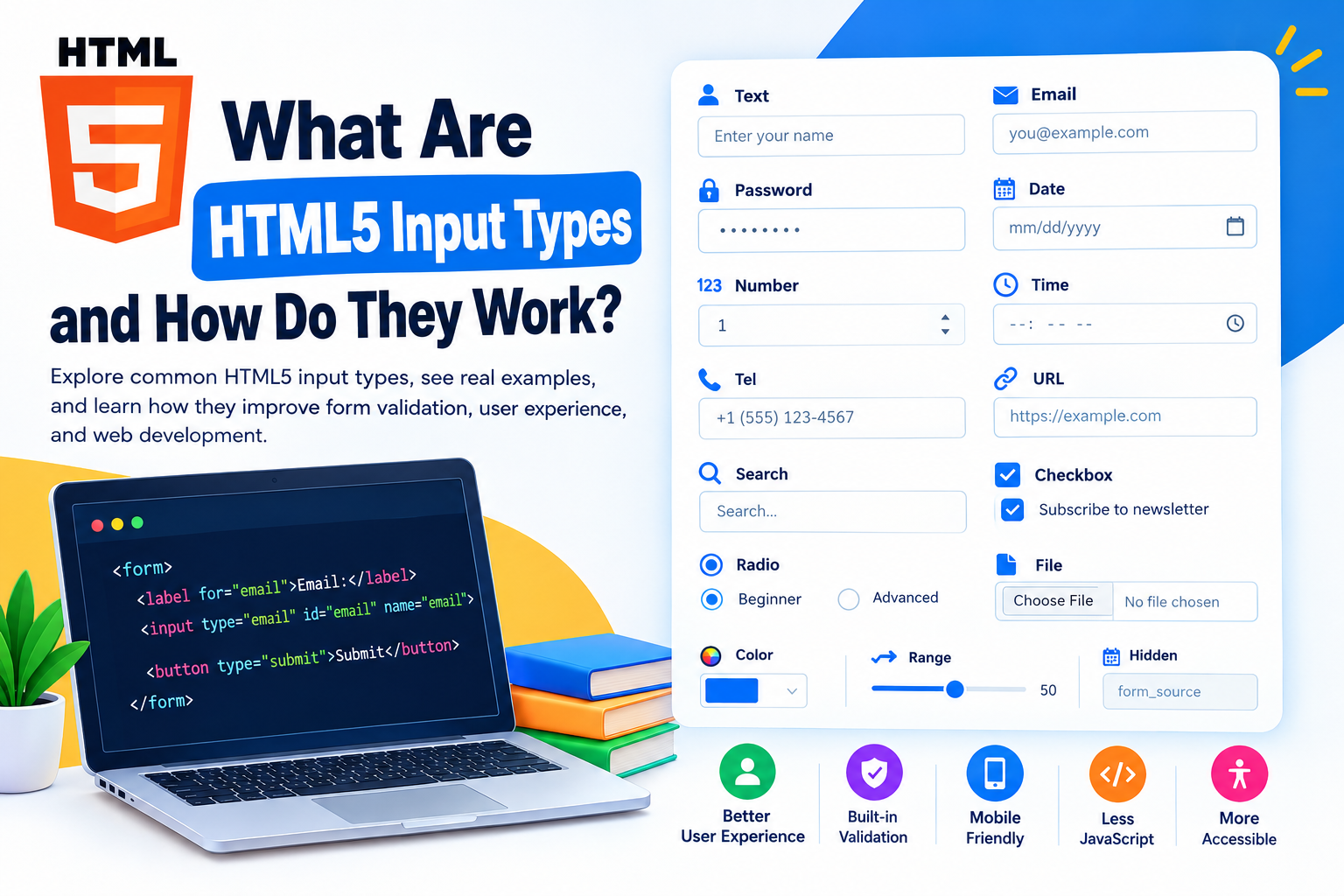
HTML5 input types are form controls that allow users to enter different kinds of data, such as text, email addresses, passwords, dates, numbers, and phone numbers, using the appropriate input format. They improve user experience, provide built-in browser validation, and help developers create interactive, accessible, and mobile-friendly web forms with less JavaScript.

Comprehensive Article: What Are HTML5 Input Types and How Do They Work?
Introduction to HTML5 Input Types
HTML forms are an essential part of modern websites. They allow users to register accounts, log in, submit contact information, make purchases, book appointments, and interact with web applications. To collect this information effectively, developers use HTML input elements.
HTML5 introduced several specialized input types that make forms more functional and user-friendly. Instead of using a basic text field for every purpose, developers can choose an input type that matches the data they want to collect.
For example, an email field can check whether the entered value follows a valid email format, while a date input can display a date picker in supported browsers.
Understanding HTML5 input types is important for students learning web development, professional developers building websites, and freelancers creating websites for clients.
What Are HTML5 Input Types?
HTML5 input types are values assigned to the type attribute of the HTML <input> element. Each type defines how a form field behaves, what kind of data it is designed to collect, and which browser features may be available.
The basic syntax looks like this:
<input type="text" name="username">In this example:
-
<input>creates a form control. -
type="text"specifies a standard text field. -
name="username"identifies the field when form data is submitted.
You can change the type attribute to create different form controls without building each one from scratch.
For instance:
<input type="email" name="email">
<input type="password" name="password">
<input type="number" name="age">
<input type="date" name="birthdate">
Each input serves a different purpose, helping developers collect information in a structured and convenient way.
Common HTML5 Input Types and Their Uses
HTML5 supports multiple input types for collecting different kinds of information. Here are the most useful options for everyday web development.
1. Text Input
The text input type collects a single line of text. It is commonly used for names, usernames, job titles, and other general information.
<label for="fullname">Full Name:</label>
<input type="text" id="fullname" name="fullname">
Common uses:
-
Registration forms
-
Contact forms
-
Profile information
-
Search fields
Text inputs are suitable when users need to enter ordinary text without a specialized format.
2. Email Input
The email input type is designed for email addresses. Browsers can validate whether the entered value follows a recognizable email format when the form is submitted.
<label for="email">Email Address:</label>
<input type="email" id="email" name="email" required>
The required attribute prevents submission when the field is empty. The email type also provides format validation, but it does not confirm that the email address exists or belongs to the user.
Common uses: Newsletter subscriptions, account registration, contact forms, and checkout pages.
3. Password Input
The password input type hides entered characters visually, helping prevent casual observation of the password.
<label for="password">Password:</label>
<input type="password" id="password" name="password" required>
Password fields are widely used on login and registration pages.
However, hiding characters does not encrypt the password or make the form automatically secure. Websites must also use HTTPS, secure server-side authentication, and appropriate password-storage practices.
4. Number Input
The number input type is intended for numerical values. Browsers may display increment and decrement controls.
<label for="quantity">Quantity:</label>
<input type="number" id="quantity" name="quantity"
       min="1" max="50" step="1">
This example allows values between 1 and 50 in increments of 1.
Useful attributes include:
-
min: Specifies the minimum permitted value. -
max: Specifies the maximum permitted value. -
step: Defines permitted increments. -
required: Makes the field mandatory.
Number inputs are useful for quantities, ages, and measurements. For postal codes, telephone numbers, or other digit-based identifiers, a text input is usually more appropriate because those values are not necessarily mathematical numbers.
5. Date Input
The date input type allows users to select a calendar date. Supported browsers typically provide a date picker.
<label for="appointment">Appointment Date:</label>
<input type="date" id="appointment" name="appointment"
       min="2026-01-01" required>
Developers can use the min and max attributes to restrict the selectable date range.
Common uses:
-
Appointment booking
-
Travel reservations
-
Event registration
-
Date-of-birth fields
The browser’s date picker can vary depending on the device and operating system.
6. Time Input
The time input type collects a time value, generally including hours and minutes.
<label for="meeting">Meeting Time:</label>
<input type="time" id="meeting" name="meeting" required>
This is useful for scheduling meetings, booking services, and selecting event times.
7. Telephone Input
The tel input type is designed for telephone numbers. On mobile devices, it may display a telephone-friendly keyboard.
<label for="phone">Phone Number:</label>
<input type="tel" id="phone" name="phone"
       placeholder="Enter your phone number">
Unlike the email type, tel does not automatically enforce a universal telephone-number format. Developers can add a pattern attribute when a specific format is required.
8. URL Input
The url input type collects web addresses and provides browser validation for URL formatting.
<label for="website">Website URL:</label>
<input type="url" id="website" name="website"
       placeholder="https://example.com">
It is useful for portfolio websites, social profile links, business websites, and online applications.
Remember that format validation does not guarantee that a website exists or is safe.
9. Search Input
The search input type is designed for search queries. Browsers may display a clear button or apply styling appropriate for a search field.
<label for="search">Search Articles:</label>
<input type="search" id="search" name="query"
       placeholder="Search tutorials...">
Developers can use it to build product searches, blog search bars, and website navigation tools.
The search itself still requires JavaScript or server-side processing to retrieve results.
10. Checkbox Input
A checkbox lets users select or deselect an individual option. Multiple checkboxes can be selected simultaneously.
<label>
  <input type="checkbox" name="newsletter" value="yes">
  Subscribe to our newsletter
</label>
Checkboxes are commonly used for preferences, terms acceptance, and optional settings.
11. Radio Input
Radio buttons allow users to select one option from a group when the buttons share the same name value.
<p>Choose a learning level:</p>

<label>
  <input type="radio" name="level" value="beginner">
  Beginner
</label>

<label>
  <input type="radio" name="level" value="advanced">
  Advanced
</label>
Unlike checkboxes, radio buttons in the same group are designed for a single selection.
12. File Input
The file input type allows users to select files from their devices.
<label for="resume">Upload Your Resume:</label>
<input type="file" id="resume" name="resume"
       accept=".pdf,.doc,.docx">
The accept attribute helps indicate which file types are appropriate, but it is not a security measure. The server must validate uploaded files.
13. Color Input
The color input type allows users to select a color through a browser-provided color picker.
<label for="theme">Choose a Theme Color:</label>
<input type="color" id="theme" name="theme" value="#3366ff">
It is useful for design tools, customization settings, and web applications that let users personalize their interface.
14. Range Input
The range input type provides a slider for selecting a numerical value within a defined range.
<label for="volume">Volume:</label>
<input type="range" id="volume" name="volume"
       min="0" max="100" value="50">
Range inputs are useful for volume controls, price filters, image adjustments, and settings where an approximate value is appropriate.
15. Hidden Input
The hidden input type stores a value in a form without displaying a visible field to the user.
<input type="hidden" name="form_source" value="contact_page">Hidden inputs can pass non-sensitive metadata, such as a form source identifier.
Important: Hidden fields are not secure storage. Users can inspect and modify their values, so never trust them for permissions, prices, or other sensitive decisions.
HTML5 Input Types at a Glance
| Input type | Primary purpose |
|---|---|
text |
General text |
email |
Email addresses |
password |
Password entry |
number |
Numerical values |
date |
Calendar dates |
time |
Time selection |
tel |
Telephone numbers |
url |
Website addresses |
search |
Search queries |
checkbox |
Multiple independent selections |
radio |
One selection from a group |
file |
File uploads |
color |
Color selection |
range |
Slider-based values |
hidden |
Non-visible form data |
month |
Month and year |
week |
Week and year |
datetime-local |
Local date and time |
submit |
Submit a form |
reset |
Reset form controls to their initial values |
button |
General button without automatic form submission |
image |
Image-based form submission button |
How Do HTML5 Input Types Work?
HTML5 input types work through the browser’s built-in form controls and validation mechanisms. Developers specify the desired type, add optional attributes, and submit the collected data for processing.
Follow these steps to understand the process.
Step 1: Create an HTML Form
Start by adding a <form> element to your webpage.
<form action="/register" method="post">
  <!-- Form fields go here -->
</form>
The action attribute specifies where the form data is sent, while method="post" requests a POST submission.
Step 2: Add Appropriate Input Types
Choose an input type based on the information you need.
<label for="name">Name:</label>
<input type="text" id="name" name="name" required>

<label for="email">Email:</label>
<input type="email" id="email" name="email" required>

<label for="age">Age:</label>
<input type="number" id="age" name="age" min="18" required>

<button type="submit">Register</button>
This form collects a name, email address, and age. The required attributes prevent submission if those fields are empty, while the age field has a minimum value.
Step 3: Add Validation Attributes
HTML provides attributes that help browsers check user input.
Some useful attributes include:
-
required: Requires a value. -
minandmax: Set numerical or date boundaries. -
minlengthandmaxlength: Restrict text length. -
pattern: Specifies a regular expression for supported text-based inputs. -
step: Controls valid numerical increments. -
placeholder: Shows a short hint inside an empty field.
For example:
<input type="text" name="username"
       minlength="3" maxlength="20" required>
This field requires a username between 3 and 20 characters long.
Step 4: Let the Browser Validate the Form
When a user submits a form, the browser checks applicable built-in validation rules unless validation has been disabled.
For example, an empty required field or an incorrectly formatted email address can prevent the form from being submitted normally. The browser may display a message asking the user to correct the input.
This feature reduces the amount of JavaScript needed for basic validation.
Step 5: Process the Submitted Data
After successful browser validation, the form can send its data to the specified endpoint.
A backend application might use PHP, Node.js, Python, or another server-side technology to process the submission.
Developers must still validate the submitted data on the server. Browser validation can be bypassed, so it should never be the only security or data-integrity check.
Benefits of HTML5 Input Types
Using the correct HTML5 input types provides practical advantages for website owners, developers, students, and freelancers.
Better User Experience
Specialized controls make forms easier to complete. A date picker can be more convenient than manually typing a date, while a mobile-friendly telephone field can simplify phone-number entry.
Built-In Form Validation
Input types such as email, along with attributes such as required, help identify common input errors before form submission.
This can reduce avoidable mistakes and improve the quality of collected information.
Improved Mobile Compatibility
Mobile browsers may display different keyboards depending on the selected input type. For example, tel may show a telephone keypad, and number may provide numerical entry controls.
The exact behavior depends on the browser and device.
Less JavaScript for Basic Features
Developers can implement many common form behaviors using HTML alone. This can simplify code and reduce the need for custom validation scripts.
Better Accessibility
When input controls have descriptive labels and clear instructions, assistive technologies can communicate their purpose more effectively.
For example, using <label for="email">Email Address</label> and matching it with id="email" helps associate the label with its field.
Common Mistakes to Avoid When Using HTML5 Input Types
Even experienced developers can make mistakes when building forms. Avoid these common problems to improve usability and reliability.
-
Using the wrong input type: Do not use
numberfor postal codes or telephone numbers when the values should be treated as identifiers. -
Ignoring labels: Every form field should have a clear, programmatically associated label.
-
Relying only on browser validation: Always validate important data on the server.
-
Treating hidden inputs as secure: Hidden values can be changed by users.
-
Forgetting required fields: Use
requiredwhere a value is genuinely necessary. -
Ignoring browser differences: Date pickers, color pickers, and other controls may look different across devices.
-
Using placeholders instead of labels: Placeholder text disappears when users enter data and is not a reliable replacement for a proper label.
Real-World Applications of HTML5 Input Types
HTML5 input types are useful in almost every industry that collects information through a website.
E-Commerce Websites
Online stores use email inputs for customer accounts, number inputs for quantities, checkboxes for preferences, and radio buttons for mutually exclusive choices.
Education Platforms
Educational websites use text fields for student names, email fields for registrations, date inputs for scheduling, and file inputs for assignment submissions.
Healthcare and Appointment Websites
Appointment forms can use date and time inputs to collect scheduling preferences. Additional server-side checks are necessary to ensure appointments are actually available.
Freelance and Business Websites
Freelancers can build contact forms, quote request forms, job application forms, and project inquiry forms with appropriate input types. These features help collect more structured information from potential clients.
Frequently Asked Questions
What is the difference between text and email input types?
The text type accepts general text, while the email type is designed for email addresses and provides built-in format validation. Neither type independently verifies a user’s identity.
Do HTML5 input types work in all browsers?
Most common input types are widely supported by modern browsers. However, the appearance and behavior of controls can vary, so developers should test their forms across relevant browsers and devices.
Can HTML5 input types replace JavaScript validation?
HTML5 can handle many basic validation tasks without JavaScript. However, JavaScript may still be useful for dynamic forms, custom error messages, and more complex interactions. Server-side validation remains essential.
Which HTML5 input type should beginners learn first?
Beginners should start with text, email, password, number, date, checkbox, and radio. These types cover many common form-building scenarios and provide a strong foundation for learning more advanced HTML techniques.
Conclusion
HTML5 input types are fundamental tools for building modern, interactive, and user-friendly web forms. By choosing the appropriate type for each field, developers can improve data collection, support browser-based validation, enhance mobile usability, and simplify their code.
Whether you are a student learning HTML, a developer building a web application, or a freelancer creating websites for clients, understanding HTML5 input types will help you create better forms and more reliable user experiences. Start by practicing with text, email, password, number, date, checkbox, and radio inputs, then combine them with validation attributes and server-side processing to build complete forms for real-world projects.