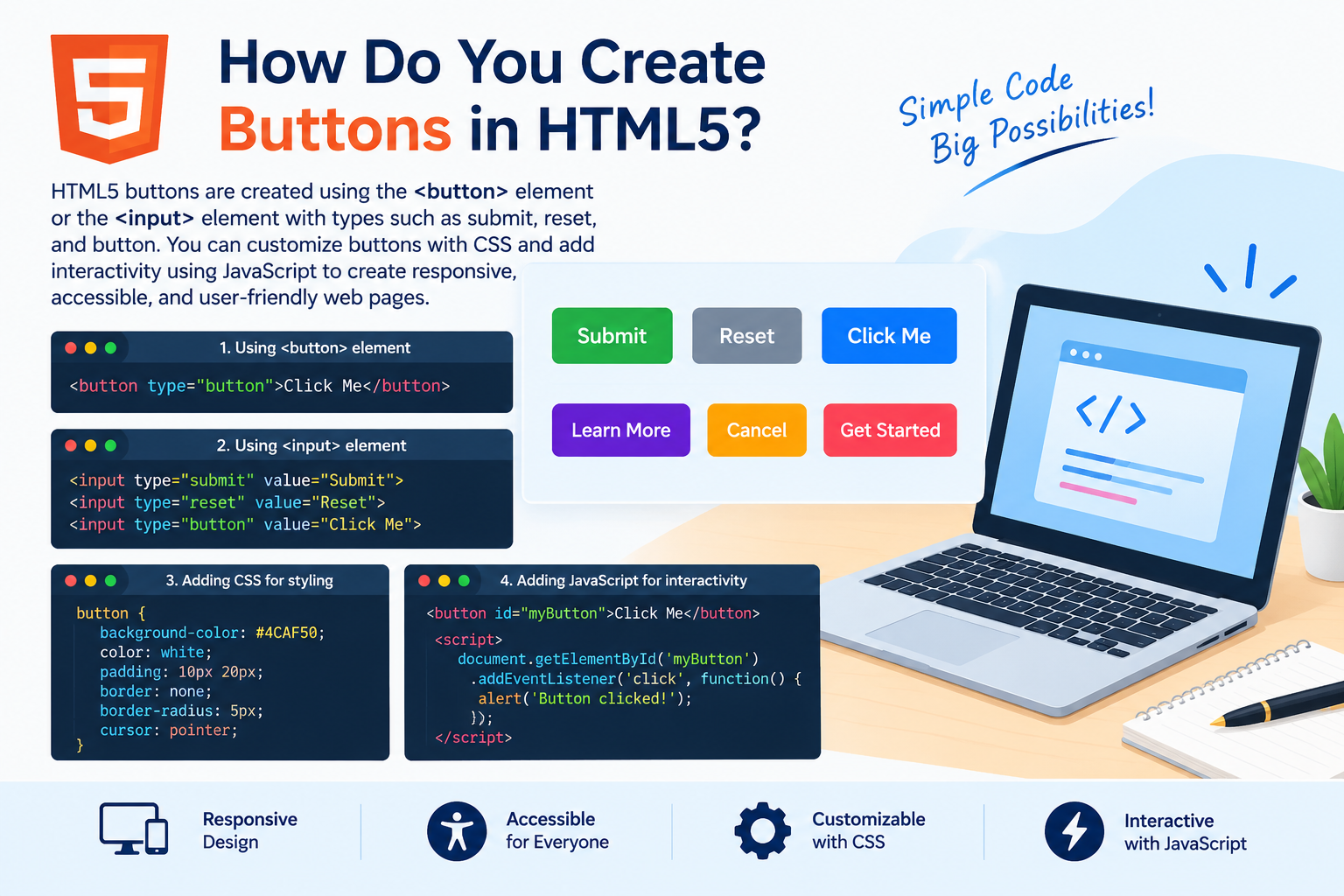
HTML5 buttons are created using the <button> element or the <input> element with types such as submit, reset, and button. You can customize buttons with CSS and add interactivity using JavaScript to create responsive, accessible, and user-friendly web pages.
Comprehensive Article: How Do You Create Buttons in HTML5?
Introduction to HTML5 Buttons
Buttons are essential elements of modern websites. They allow users to submit forms, navigate through interactive interfaces, trigger JavaScript functions, and perform actions such as logging in, signing up, or adding products to a shopping cart.
HTML5 provides simple ways to create buttons using built-in HTML elements. Developers can style these buttons with CSS and control their behavior using JavaScript.
Whether you are learning HTML, building a business website, or developing projects for freelance clients, understanding HTML5 buttons is an important web development skill.
What Is a Button in HTML5?
An HTML5 button is a clickable interface element that allows users to perform an action on a webpage. The most flexible way to create one is with the <button> element.
Here is a basic example:
<button type="button">Click Me</button>This code creates a button displaying the text “Click Me.” By itself, it does not perform an additional action. You can connect it to JavaScript or use it within a form to perform a specific task.
1. How to Create a Basic Button in HTML5
Follow these steps to create your first HTML button.
Step 1: Create an HTML document.
<!DOCTYPE html>
<html lang="en">
<head>
    <meta charset="UTF-8">
    <meta name="viewport" content="width=device-width, initial-scale=1.0">
    <title>HTML5 Button Example</title>
</head>
<body>

    <button type="button">Click Me</button>

</body>
</html>
Step 2: Save the file.
Save the code as index.html.
Step 3: Open it in your browser.
Double-click the file or open it using your browser. You will see a clickable button on the webpage.
This is the simplest way to create an HTML button without using CSS or JavaScript.
2. Different Types of HTML5 Buttons
HTML supports different button behaviors depending on the element and its attributes.
Button Using the <button> Element
The <button> element supports text, icons, and other HTML content inside the button.
<button type="button">Learn More</button>Use this element when you want flexibility in designing and styling your buttons.
Submit Button
A submit button sends form data for processing when the form is valid and submission is not otherwise prevented.
<form action="/submit" method="post">
    <label for="email">Email:</label>
    <input type="email" id="email" name="email" required>

    <button type="submit">Submit Form</button>
</form>
When clicked, the button submits the form to the URL specified in the action attribute.
Reset Button
A reset button restores form controls to their initial values.
<form>
    <input type="text" name="username" placeholder="Enter username">

    <button type="reset">Reset Form</button>
</form>
Reset buttons can be useful for certain data-entry forms, although they should be used carefully because users may accidentally lose their input.
Button Using the <input> Element
You can also create buttons with the <input> element.
<input type="button" value="Click Here">
<input type="submit" value="Submit">
<input type="reset" value="Reset">
The value attribute specifies the text displayed on each input button.
Unlike <button>, an <input> button cannot contain nested HTML elements such as icons or formatted text.
3. How to Style HTML5 Buttons Using CSS
Default HTML buttons work, but their appearance may not match your website’s design. CSS allows you to customize their colors, sizes, spacing, borders, and interactive states.
Here is a simple example of a styled button.
<!DOCTYPE html>
<html lang="en">
<head>
    <meta charset="UTF-8">
    <meta name="viewport" content="width=device-width, initial-scale=1.0">

    <style>
        .my-button {
            background-color: #007bff;
            color: white;
            padding: 12px 24px;
            border: none;
            border-radius: 6px;
            font-size: 16px;
            cursor: pointer;
        }

        .my-button:hover {
            background-color: #0056b3;
        }
    </style>
</head>
<body>

    <button type="button" class="my-button">
        Get Started
    </button>

</body>
</html>
Understanding the CSS Properties
-
background-color: Sets the button’s background color. -
color: Changes the text color. -
padding: Adds space around the text. -
border: Controls the button’s border. -
border-radius: Rounds the corners. -
font-size: Sets the text size. -
cursor: pointer: Indicates that the button is clickable. -
:hover: Applies styles when the pointer hovers over the button.
CSS makes it easier to create buttons that match your brand and provide a consistent user experience.
4. How to Make HTML5 Buttons Interactive with JavaScript
HTML creates the button, CSS controls its appearance, and JavaScript can define what happens when the user clicks it.
For example, you can display a message when a button is clicked.
<button type="button" onclick="showMessage()">
    Click Me
</button>

<p id="message"></p>

<script>
    function showMessage() {
        document.getElementById("message").textContent =
            "Hello! You clicked the button.";
    }
</script>
How This Code Works
-
The
<button>element creates the clickable control. -
The
onclickattribute calls theshowMessage()function. -
JavaScript locates the paragraph using its ID.
-
The
textContentproperty updates the paragraph with a message.
This example demonstrates how HTML and JavaScript work together to create an interactive webpage.
For larger applications, developers often attach event listeners in JavaScript rather than placing event handlers directly in HTML.

5. Create a Button That Opens Another Webpage
You can use JavaScript to redirect users when they click a button.
<button type="button" id="visitButton">
    Visit ToolMentors
</button>

<script>
    document.getElementById("visitButton").addEventListener(
        "click",
        function () {
            window.location.href = "https://toolmentors.com/";
        }
    );
</script>
When clicked, the button navigates to the specified URL.
However, if your goal is simply to navigate to another page, an HTML link styled as a button is often more accessible and semantically appropriate:
<a href="https://toolmentors.com/" class="my-button">
    Visit ToolMentors
</a>
Apply the same .my-button CSS styles shown earlier. A link navigates to a destination, while a button generally performs an action.
6. Important HTML5 Button Attributes
Several attributes help control button behavior.
| Attribute | Purpose |
|---|---|
type |
Defines whether the button is button, submit, or reset |
disabled |
Prevents the button from being activated |
name |
Identifies the button in submitted form data when applicable |
value |
Supplies a value associated with the button |
form |
Associates a button with a form by its ID |
autofocus |
Requests focus when the page loads |
For example, a disabled button looks like this:
<button type="button" disabled>
    Currently Unavailable
</button>
The browser prevents normal user activation of this button while it is disabled.
Important tip: Always specify the type attribute when using <button> inside a form. A button without an explicit type generally behaves as a submit button when associated with a form, which can cause unintended form submissions.
7. Best Practices for Creating HTML5 Buttons
Follow these best practices to make your buttons more useful and accessible.
Use Descriptive Button Text
Choose clear labels such as “Create Account,” “Download Guide,” or “Submit Application” instead of vague text such as “Click Here.”
Make Buttons Accessible
Use meaningful text, maintain sufficient color contrast, and ensure buttons can be operated using a keyboard.
For icon-only buttons, provide an accessible name, such as an appropriate aria-label.
Choose the Correct Button Type
Use type="submit" for submitting forms, type="reset" for resetting form values, and type="button" for general actions.
Make Buttons Mobile-Friendly
Use adequate padding and spacing so users can easily tap buttons on mobile devices. Test their appearance on different screen sizes.
Provide Visual Feedback
Use hover, focus, and disabled states to communicate how buttons behave. Make keyboard focus clearly visible rather than removing the browser’s focus outline without providing an alternative.
Avoid Using Buttons for Simple Navigation
Use an <a> element for navigation and a <button> element for actions. This improves semantic clarity and user experience.
8. Real-World Uses of HTML5 Buttons
HTML5 buttons are used across many types of websites and applications.
-
E-commerce: Add-to-cart buttons, checkout buttons, and order confirmation.
-
Education: Quiz submissions, lesson navigation, and assignment uploads.
-
Business websites: Contact requests, quote forms, and appointment booking.
-
Blogs: Search actions, newsletter submissions, and content filters.
-
Web applications: Opening menus, saving settings, and displaying interactive messages.
For students, practicing button creation builds a foundation in HTML, CSS, and JavaScript. For freelancers, mastering buttons helps deliver professional, interactive websites that meet client requirements.
Frequently Asked Questions
Can I create an HTML5 button without CSS?
Yes. You can create a working button using <button type="button">Click Me</button>. Browsers provide default styling, so CSS is optional.
What is the difference between <button> and <input type="button">?
The <button> element can contain text, icons, and other permitted HTML content. The <input type="button"> element uses the value attribute for its label and cannot contain nested HTML.
How do I change a button’s color in HTML5?
Use CSS properties such as background-color and color to customize the button’s background and text.
Do HTML5 buttons require JavaScript?
No. Buttons can submit or reset forms without JavaScript. JavaScript is needed only when you want to implement additional custom behavior, such as displaying a message or dynamically updating content.
Conclusion
Creating buttons in HTML5 is straightforward with the <button> element and the different types of the <input> element. You can improve their appearance with CSS, add custom functionality with JavaScript, and make them more accessible through descriptive labels and keyboard-friendly design.
Start by creating a basic button, then practice form submission, CSS styling, and JavaScript interactions. These skills will help you build better websites and develop a stronger foundation in modern web development.