
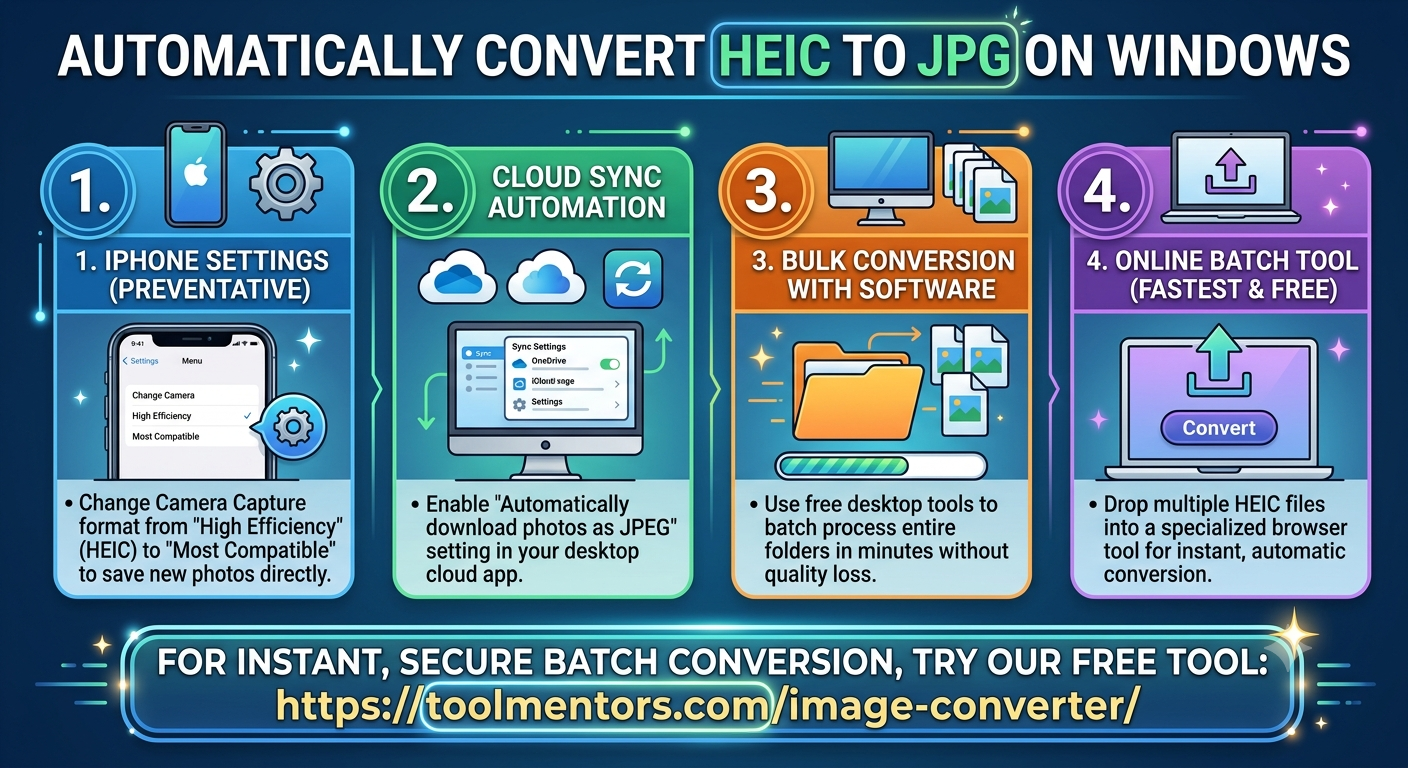
Moving images from an iPhone to a Windows PC often leaves you with HEIC files that refuse to open natively on older systems. If you find yourself manually converting files every single day, it’s time to automate the process.
Setting up automatic conversions ensures that your files are ready to use the exact moment they land on your hard drive. Here is how to configure automatic HEIC to JPG conversions on Windows.
Method 1: The Transfer Trick (100% Automatic)
The most seamless way to get JPGs onto your Windows computer is to let your iPhone handle the conversion automatically during the file transfer process.
Once this is enabled, your iPhone checks the destination device whenever you connect a USB cable. Since it detects a Windows PC, it converts the .heic format into universal .jpg files on the fly during copy-pasting.
Method 2: Change Future Capture Settings
If you want to stop dealing with HEIC entirely, you can instruct your iPhone camera to shoot directly in JPG format from this day forward.
-
Head to your iPhone Settings and tap Camera.
-
Select Formats at the very top of the screen.
-
Switch the selection from High Efficiency to Most Compatible.
Note: While this prevents future HEIC files completely, it will cause your new photos to take up roughly twice as much storage space on your phone.
Method 3: Use Automated Folder Syncing
If you rely on cloud services like OneDrive, Google Drive, or iCloud for Windows to move your media files, check their settings. Most desktop cloud clients include a toggle feature in their preferences panel that reads: “Automatically download photos as JPEG instead of HEIC.” Turning this on processes the conversions in the background during active sync cycles.
Need a Quick Conversion Right Now?
If you have older HEIC folders that didn’t convert automatically and you need them transformed immediately without installing software, try our lightning-fast platform at ToolMentors Image Converter. Just drop your batch of images directly into the browser to instantly generate pristine JPG versions in bulk!