
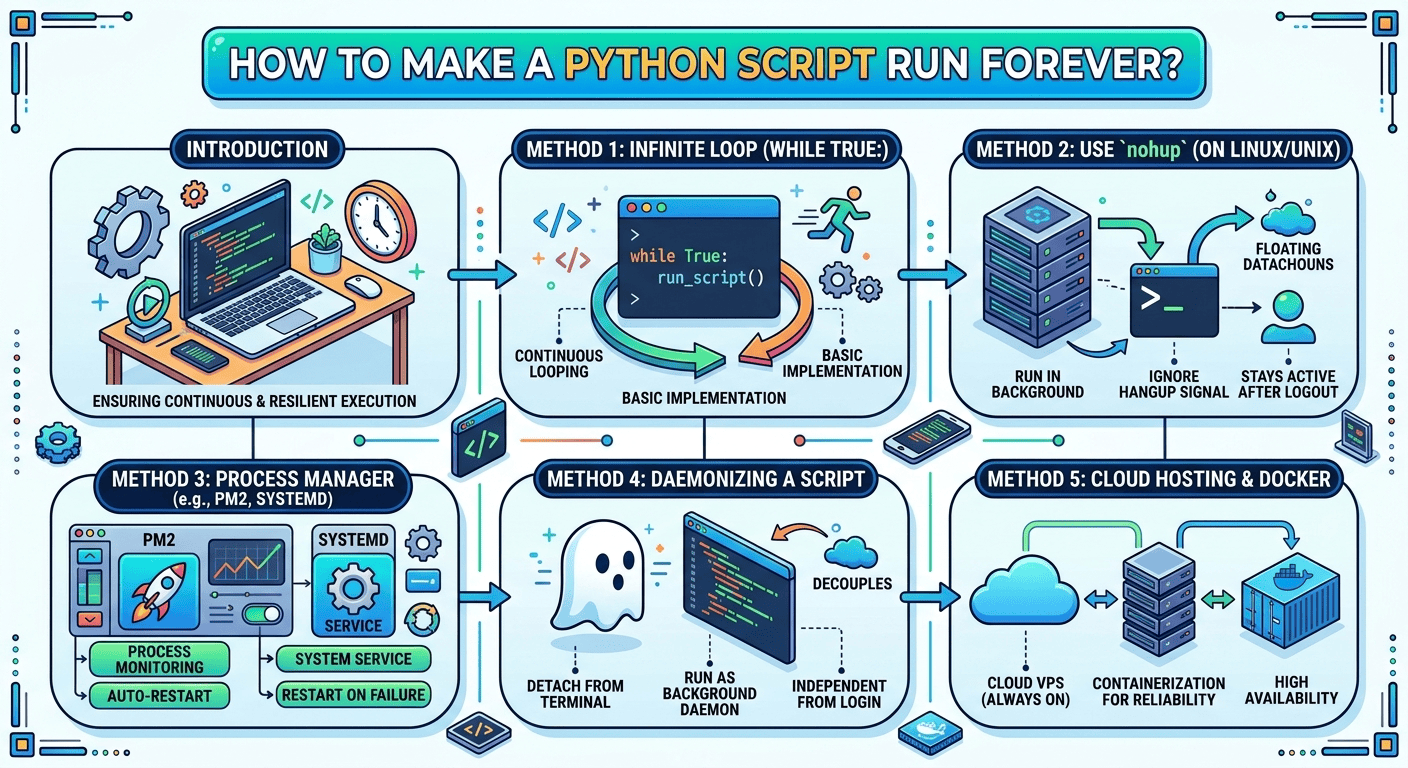
To make a Python script run forever, wrap your execution logic inside an infinite while True: loop with robust exception handling and deploy it as a persistent service using process managers like systemd, PM2, or tmux on a Linux server. Deploying your script to a reliable Cloud VPS ensures 24/7 uptime, auto-restarts upon server reboots, and complete independence from your local computer.
Introduction: Why Run a Python Script Continuously?
Whether you are building an automated web scraper, a Telegram or Discord bot, an algorithmic trading system, or an IoT monitoring agent, long-running Python scripts are the backbone of modern backend automation.
However, keeping a script active present unique technical challenges. If your laptop enters sleep mode, your internet connection drops, or an unhandled exception triggers in your script, the Python interpreter terminates immediately.
To achieve 100% uptime, you need a combination of clean Python code structures, crash-resilience strategies, and server-side process management.

Step 1: Writing Code Designed for Infinite Execution
Before configuring server background tools, your script must be engineered to loop continuously without crashing or consuming excessive CPU resources.
1. Implement an Infinite Loop with CPU Throttling
An unthrottled while True: loop will consume 100% of a CPU core by executing millions of iterations per second. Always insert time.sleep() to throttle execution frequency.
Python
import time
import logging

# Configure basic logging to record output
logging.basicConfig(
    filename="app.log",
    level=logging.INFO,
    format="%(asctime)s - %(levelname)s - %(message)s"
)

def main_task():
    logging.info("Executing background task...")
    # Your core logic goes here (e.g., API calls, database updates)

if __name__ == "__main__":
    while True:
        try:
            main_task()
        except Exception as e:
            logging.error(f"An error occurred: {e}")

        # Sleep for 60 seconds to prevent high CPU utilization
        time.sleep(60)
2. Wrap Core Logic in Exception Handling
If an API request times out or a database connection drops, an unhandled error will kill the entire Python process. Placing the execution logic inside a try...except block ensures the loop logs the error and continues to the next cycle.
Step 2: Transitioning from Local Machines to the Cloud
Running long-term scripts on a local laptop or desktop is impractical due to power consumption, automatic OS updates, and network disconnects. For true reliability, developers and freelancers deploy background scripts to a Virtual Private Server (VPS).
Using a dedicated Cloud VPS service—such as Hostinger VPS—gives you dedicated system resources, root SSH access, and persistent high-speed internet connectivity. This guarantees that your Python scripts run uninterrupted in a secure Linux environment, even when your local machine is completely turned off.
Step 3: Four Proven Methods to Keep Python Running 24/7 on Linux
Once connected to your cloud server via SSH, choose one of the following methods to keep your Python script active in the background.
Method A: Using nohup (Simplest Background Execution)
The nohup (no hangup) command allows commands to ignore the SIGHUP signal sent when an SSH terminal closes.
Bash
nohup python3 script.py > output.log 2>&1 &
-
nohup: Keeps the process running after logging out. -
> output.log 2>&1: Redirects standard output and error messages into a log file. -
&: Runs the process in the background.
Limitation:
nohupdoes not automatically restart your script if it crashes or if the server reboots.
Method B: Using tmux or screen (Interactive Terminal Sessions)
Terminal multiplexers create virtual terminal sessions that stay open on the server independently of your SSH connection.
-
Start a new session:
Bash
tmux new -s python_service -
Run your script inside the session:
Bash
python3 script.py -
Detach from the session: Press
Ctrl + B, then release and pressD. -
Reattach anytime later:
Bash
tmux attach -t python_service
Method C: Using systemd (The Enterprise Production Standard)
The most robust solution for Linux production servers is systemd. It turns your Python script into a native system daemon, managing automatic restarts on failure and system boot-ups.
-
Create a service file:
Bash
sudo nano /etc/systemd/system/pythonservice.service -
Add the service configuration:
Ini, TOML
[Unit] Description=Continuous Python Automation Script After=network.target [Service] Type=simple User=root WorkingDirectory=/root/my_project ExecStart=/usr/bin/python3 /root/my_project/script.py Restart=always RestartSec=10 [Install] WantedBy=multi-user.target -
Enable and start the service:
Bash
sudo systemctl daemon-reload
sudo systemctl start pythonservice
sudo systemctl enable pythonservice
Now, if your script crashes, Linux will automatically restart it after 10 seconds. If the server reboots, systemd auto-launches the script on startup.
Method D: Using PM2 (Modern Node/Python Process Manager)
Originally built for Node.js, PM2 works seamlessly with Python and provides a clean dashboard interface for log monitoring and auto-restarts.
-
Install Node.js & PM2:
Bash
sudo apt install npm -y sudo npm install -g pm2 -
Launch the script:
Bash
pm2 start script.py --name "my-python-bot" --interpreter python3 -
Save process state for reboots:
Bash
pm2 save
pm2 startup
Real-World Benefits for Developers, Students, and Freelancers
Mastering background process management transforms how you build digital tools and deliver client projects:
-
For Students & Beginners: Gain hands-on Linux system administration experience, build cloud-backed portfolio projects, and learn production-grade error logging.
-
For Web Developers: Automate database cleanups, trigger scheduled emails, handle webhook events asynchronously, and host continuous web scrapers.
-
For Freelancers: Offer high-value, turn-key automation solutions to clients (e.g., automated social media posters, real-time price monitoring dashboards, or custom API integration bots) with guaranteed 99.9% uptime.
Best Practices Checklist for Long-Running Python Applications
To maintain a healthy background process over months or years, implement these development habits:
-
Use Explicit Logging: Avoid basic
print()statements. Use Python’s built-inloggingmodule to output timestamps and log severity levels to log files orjournalctl. -
Manage Memory Leaks: Avoid appending data infinitely to global lists or dictionaries inside loops. Let garbage collection clear unused objects.
-
Rotate Log Files: Prevent log files from growing indefinitely and filling up server storage by implementing
RotatingFileHandler. -
Monitor API Rate Limits: Respect third-party API quotas by configuring exponential backoff retries when network calls fail.
Deploy Your Python Scripts on Hostinger Cloud VPS
To keep your automated bots, scrapers, and Python scripts running 24/7/365 without relying on your personal computer, you need a high-performance, cost-effective server solution.
Hostinger VPS provides blazing-fast NVMe storage, dedicated IPv4 address support, full root SSH access, and 1-click OS installations (including Ubuntu and Debian), making it the ideal environment for Python developers.
Exclusive 20% Discount Offer
Take your backend automation to the cloud today with an EXCLUSIVE 20% DISCOUNT on Hostinger VPS hosting plans.
-
Full Root Access & Terminal Freedom
-
99.9% Uptime Guarantee for Continuous Execution
-
Ultra-Fast NVMe SSD Storage & High Bandwidth
-
Instant System Snapshots & Backups