
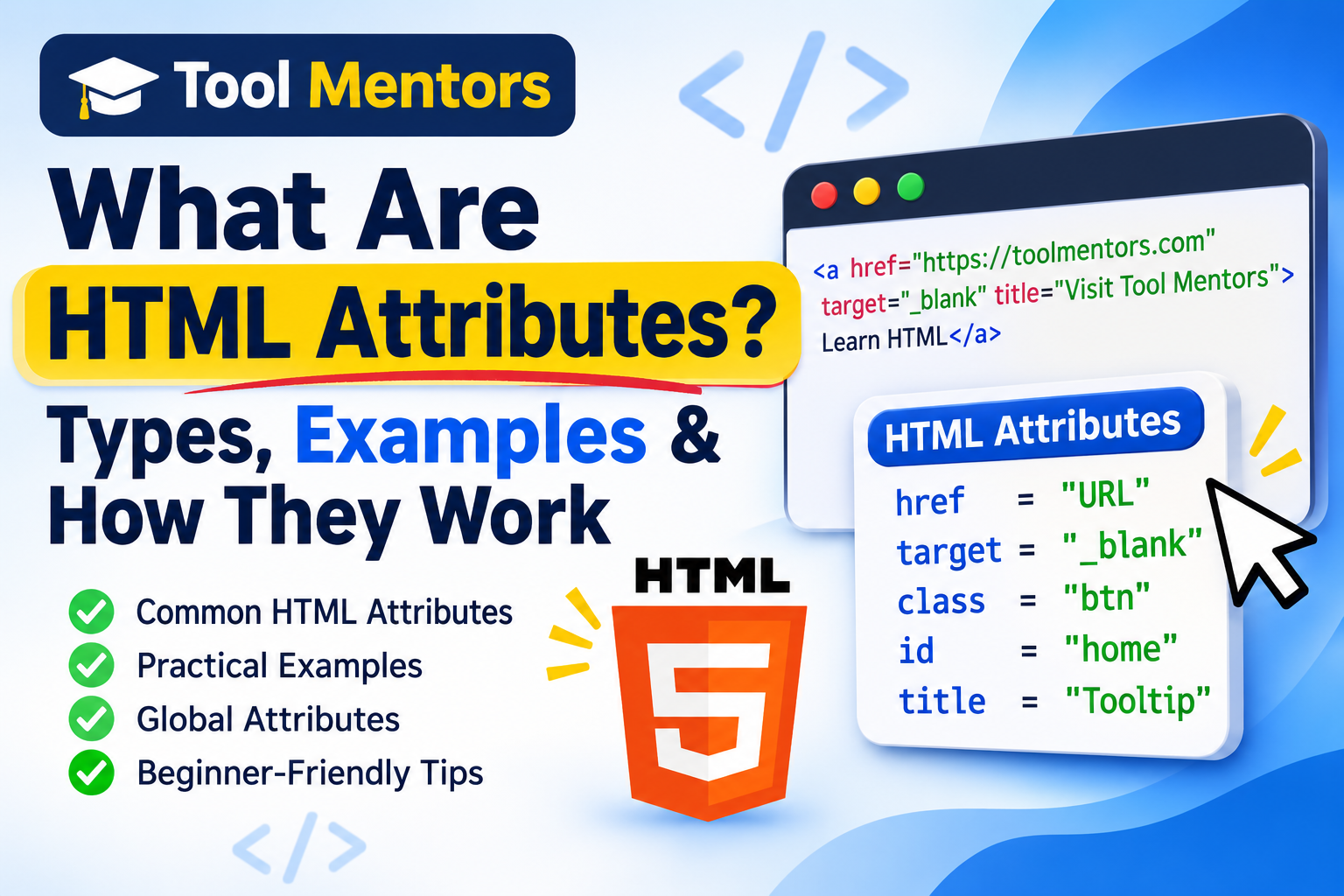
HTML attributes provide additional information about HTML elements and help control their behavior, appearance, and functionality on a webpage. They are written inside an element’s opening tag and commonly use name-value pairs, such as href, src, id, class, and alt.
Introduction to HTML Attributes
HTML (HyperText Markup Language) is the standard language used to structure content on websites. It allows developers to create headings, paragraphs, images, links, forms, buttons, tables, and other webpage elements.
However, HTML elements sometimes need additional information to work correctly. This is where HTML attributes become important.
For example, an image element needs a source attribute to tell the browser where to find the image. Similarly, a link needs an href attribute to specify its destination.
Consider this example:
<a href="https://toolmentors.com/">Visit ToolMentors</a>In this example:
-
<a>is the HTML anchor element. -
hrefis the attribute. -
https://toolmentors.com/is the attribute value. -
Visit ToolMentorsis the clickable link text.
Without the href attribute, the anchor element would not have a specified destination.
Understanding HTML attributes is an essential step for anyone learning web development. Whether you are a student, beginner, freelancer, or professional developer, knowing how attributes work will help you create more functional, accessible, and well-structured websites.
1. What Are HTML Attributes?
HTML attributes are special instructions added to HTML elements to provide extra information or define specific settings.
They help browsers understand how an element should behave and what additional information it should use.
For example, the width and height attributes can specify the dimensions of an image, while the target attribute determines where a linked page should open.
Here is a simple example:
<img src="computer.jpg" alt="Desktop computer" width="400">This image element contains three attributes:
-
src: Specifies the image file location. -
alt: Provides alternative text describing the image. -
width: Defines the image width in pixels.
Why are HTML attributes important?
HTML attributes help developers:
-
Add links to websites and webpages.
-
Display images and multimedia content.
-
Identify specific HTML elements.
-
Organize and style webpage sections.
-
Improve website accessibility.
-
Collect information through HTML forms.
-
Control how elements behave in browsers.
2. How Do HTML Attributes Work?
HTML attributes work by providing additional information within an element’s opening tag. When a browser processes an HTML document, it reads the elements and their attributes to understand how the content should be interpreted and displayed.
Let’s understand the process step by step.
Step 1: Create an HTML Element
First, write an HTML element that represents the content you want to display.
<p>Welcome to my website!</p>This creates a paragraph on the webpage.
Step 2: Add an Attribute
Next, add an attribute inside the opening tag.
<p class="intro">Welcome to my website!</p>Here, class is the attribute, and intro is its value.
Step 3: Let the Browser Process the Attribute
The browser reads the HTML document and recognizes the class assigned to the paragraph.
CSS or JavaScript can then use that class to apply styling or interact with the element.
Step 4: Display the Result
For example, the following CSS changes the paragraph’s text color:
<style>
.intro {
    color: blue;
    font-size: 20px;
}
</style>

<p class="intro">Welcome to my website!</p>
The browser displays the paragraph in blue text with a font size of 20 pixels.
This is how HTML attributes provide additional information that other web technologies can use.
3. Common HTML Attributes With Examples
HTML provides many attributes that developers use regularly. Some work with almost every HTML element, while others are designed for specific elements.
Here are some commonly used HTML attributes.
1. The href Attribute
The href attribute specifies the destination URL of a hyperlink. It is commonly used with the <a> element.
<a href="https://toolmentors.com/blog/">Explore Our Blog</a>When users click the link, the browser navigates to the specified webpage.
2. The src Attribute
The src attribute specifies the location of an external resource, such as an image or JavaScript file.
<img src="web-development.jpg" alt="Web development">The browser uses the src value to locate and display the image.
3. The alt Attribute
The alt attribute provides alternative text for images. It is especially useful for screen readers and when an image cannot load.
<img src="html-course.jpg" alt="HTML course for beginners">Descriptive alternative text helps users understand the purpose of an image.
4. The id Attribute
The id attribute gives an HTML element a unique identifier within a document.
<h2 id="html-basics">HTML Basics</h2>Developers can use this identifier in CSS, JavaScript, and page navigation.
5. The class Attribute
The class attribute assigns one or more class names to an HTML element. It is commonly used to apply CSS styles to multiple elements.
<p class="highlight">Learn HTML step by step.</p>Multiple elements can share the same class.
6. The style Attribute
The style attribute allows developers to apply inline CSS directly to an HTML element.
<p style="color: green; font-size: 18px;">
    Welcome to HTML!
</p>
It is useful for quick styling, although external stylesheets are generally better for maintaining larger websites.
7. The title Attribute
The title attribute provides additional information about an element.
<p title="Learn more about HTML">
    HTML is easy to learn.
</p>
Browsers commonly display the title information as a tooltip when users hover over the element.
8. The target Attribute
The target attribute specifies where a linked document should open.
<a href="https://toolmentors.com/" target="_blank">
    Visit ToolMentors
</a>
The _blank value generally opens the destination in a new tab or window.
9. The width and height Attributes
These attributes specify the dimensions of elements such as images.
<img src="coding.jpg" alt="Coding on a laptop" width="500" height="300">They help define the image’s display dimensions and can help browsers reserve layout space.
10. The placeholder Attribute
The placeholder attribute displays a short hint inside an input field.
<input type="text" placeholder="Enter your name">It helps users understand what information they should enter.
4. What Is the Difference Between HTML Tags and Attributes?
HTML tags and attributes are related, but they perform different functions.
An HTML tag defines an element, while an attribute provides additional information or settings for that element.
Consider this example:
<a href="https://toolmentors.com/">
    Visit Website
</a>
Here is the difference:
| HTML Component | Purpose |
|---|---|
<a> |
Defines a hyperlink element |
href |
Specifies the destination |
https://toolmentors.com/ |
Provides the URL value |
Visit Website |
Displays clickable text |
In simple terms, tags define what an element is, while attributes provide additional details about how that element works.
5. What Are Global Attributes in HTML?
Global attributes are HTML attributes that can be used on most HTML elements. They provide common functionality across different types of webpage content.
Some important global attributes include:
-
id: Assigns a unique identifier to an element. -
class: Assigns one or more class names. -
style: Applies inline CSS styling. -
title: Provides additional information. -
lang: Specifies the language of an element’s content. -
hidden: Indicates that an element should not be displayed. -
tabindex: Controls an element’s keyboard focus order. -
contenteditable: Specifies whether an element’s content can be edited. -
draggable: Indicates whether an element can be dragged. -
dir: Specifies the text direction.
Example:
<p id="intro" class="description" lang="en">
    Learn web development with simple tutorials.
</p>
This paragraph uses three global attributes to identify the element, assign a class, and specify its language.
6. What Are Boolean Attributes in HTML?
Boolean attributes are attributes that represent true or false conditions. In HTML, their presence generally means true, while their absence means false.
They do not require a value in the usual sense.
Common examples include:
-
disabled -
checked -
required -
readonly -
multiple -
autofocus -
selected
For example:
<input type="text" disabled>The disabled attribute prevents users from interacting with the input field.
Another example:
<input type="checkbox" checked>The checkbox appears selected by default.
Boolean attributes can also be written with their names as values, such as disabled="disabled", but simply including the attribute name is usually sufficient.
7. What Is the Difference Between ID and Class Attributes?
The id and class attributes are frequently used in HTML, especially when working with CSS and JavaScript.
However, they have different purposes.
| Feature | ID Attribute | Class Attribute |
|---|---|---|
| Purpose | Identifies an element | Groups elements |
| Uniqueness | Should be unique per document | Can be reused |
| CSS selector | #header |
.header |
| Multiple elements | Avoid duplicate IDs | Multiple elements can share a class |
| Common use | Unique sections and elements | Reusable styling |
Example:
<h1 id="main-heading">Welcome</h1>

<p class="text">First paragraph.</p>
<p class="text">Second paragraph.</p>
In this example, the heading has a unique ID, while both paragraphs share the same class.
8. How to Use HTML Attributes Correctly: Best Practices
Using HTML attributes correctly helps improve website quality, accessibility, maintainability, and functionality.
Follow these best practices:
-
Use descriptive attribute values: Choose meaningful IDs, class names, and alternative text.
-
Always include useful alt text: Describe meaningful images so screen reader users can understand their purpose.
-
Keep IDs unique: Avoid assigning the same ID to multiple elements within one document.
-
Use quotation marks: Enclose attribute values in double quotes for consistent, readable HTML.
-
Avoid unnecessary attributes: Only add attributes that serve a useful purpose.
-
Use semantic HTML: Choose appropriate elements and attributes to communicate the meaning of your content.
-
Validate your HTML: Use an HTML validator to identify incorrect syntax and markup issues.
-
Protect external links: When using
target="_blank", consider addingrel="noopener"for additional security.
Following these practices makes your HTML easier to understand, maintain, and improve.
9. Why Are HTML Attributes Important for Students, Developers, and Freelancers?
HTML attributes are not just technical details. They are essential building blocks of modern web development.
For students:
-
Build a strong foundation in HTML.
-
Understand how webpages are structured.
-
Prepare for web development assignments and practical projects.
-
Learn how HTML works with CSS and JavaScript.
For web developers:
-
Create functional navigation menus and hyperlinks.
-
Build interactive forms and user interfaces.
-
Improve accessibility and website usability.
-
Manage webpage elements through CSS and JavaScript.
For freelancers:
-
Develop professional websites for clients.
-
Customize WordPress themes and HTML templates.
-
Create landing pages and business websites.
-
Troubleshoot HTML-related issues.
-
Improve the quality of website development projects.
If you are learning HTML from scratch, explore the HTML5 Complete Guide for Beginners on ToolMentors for more beginner-friendly tutorials.
You can also visit the ToolMentors Blog to explore additional web development guides and programming resources.
10. Conclusion
HTML attributes play an important role in making webpages functional, accessible, and interactive. They provide additional information to HTML elements and help browsers, CSS, and JavaScript work with webpage content.
From basic attributes such as href, src, alt, id, and class to global and boolean attributes, understanding their purpose will help you write cleaner and more effective HTML code.
Whether you are a student learning web development, a developer building websites, or a freelancer working on client projects, mastering HTML attributes is an important step toward becoming more confident in web development.
Keep practising with real HTML examples, experiment with different attributes, and explore more tutorials on ToolMentors.
11. Frequently Asked Questions About HTML Attributes
1. What are attributes in HTML?
HTML attributes provide additional information about HTML elements. They are written inside opening tags and help define an element’s properties, behavior, or settings.
2. How do HTML attributes work?
HTML attributes work by providing information within an HTML element’s opening tag. Browsers process this information to determine how elements should behave or be displayed.
3. What is the syntax of an HTML attribute?
The basic syntax is attribute="value". For example, <a href="https://example.com">Visit Website</a> uses the href attribute to specify a link destination.
4. Can an HTML element have multiple attributes?
Yes. An HTML element can have multiple attributes in its opening tag. For example, an image can use src, alt, width, and height attributes together.
5. What is the difference between an HTML tag and an attribute?
An HTML tag defines an element, such as a heading, paragraph, or image. An attribute provides additional information about that element, such as its ID, class, image source, or link destination.
6. What are the most commonly used HTML attributes?
Some commonly used HTML attributes include href, src, alt, id, class, style, title, target, width, and height.
7. What is the difference between ID and class attributes in HTML?
The id attribute identifies a unique element within a document, while the class attribute groups multiple elements so they can share CSS styles or JavaScript functionality.
8. What are global attributes in HTML?
Global attributes are attributes that can be used on most HTML elements. Examples include id, class, style, title, lang, and hidden.
9. What are boolean attributes in HTML?
Boolean attributes represent true or false conditions. Their presence generally means true, while their absence means false. Examples include disabled, checked, and required.
10. Are HTML attributes case-sensitive?
HTML attribute names are case-insensitive in HTML documents. However, lowercase attribute names are recommended because they improve readability and follow modern HTML coding conventions.